Iceland 2009
REYKJAVIK
DAY 1 : SUNDAY AUGUST 09, 2009
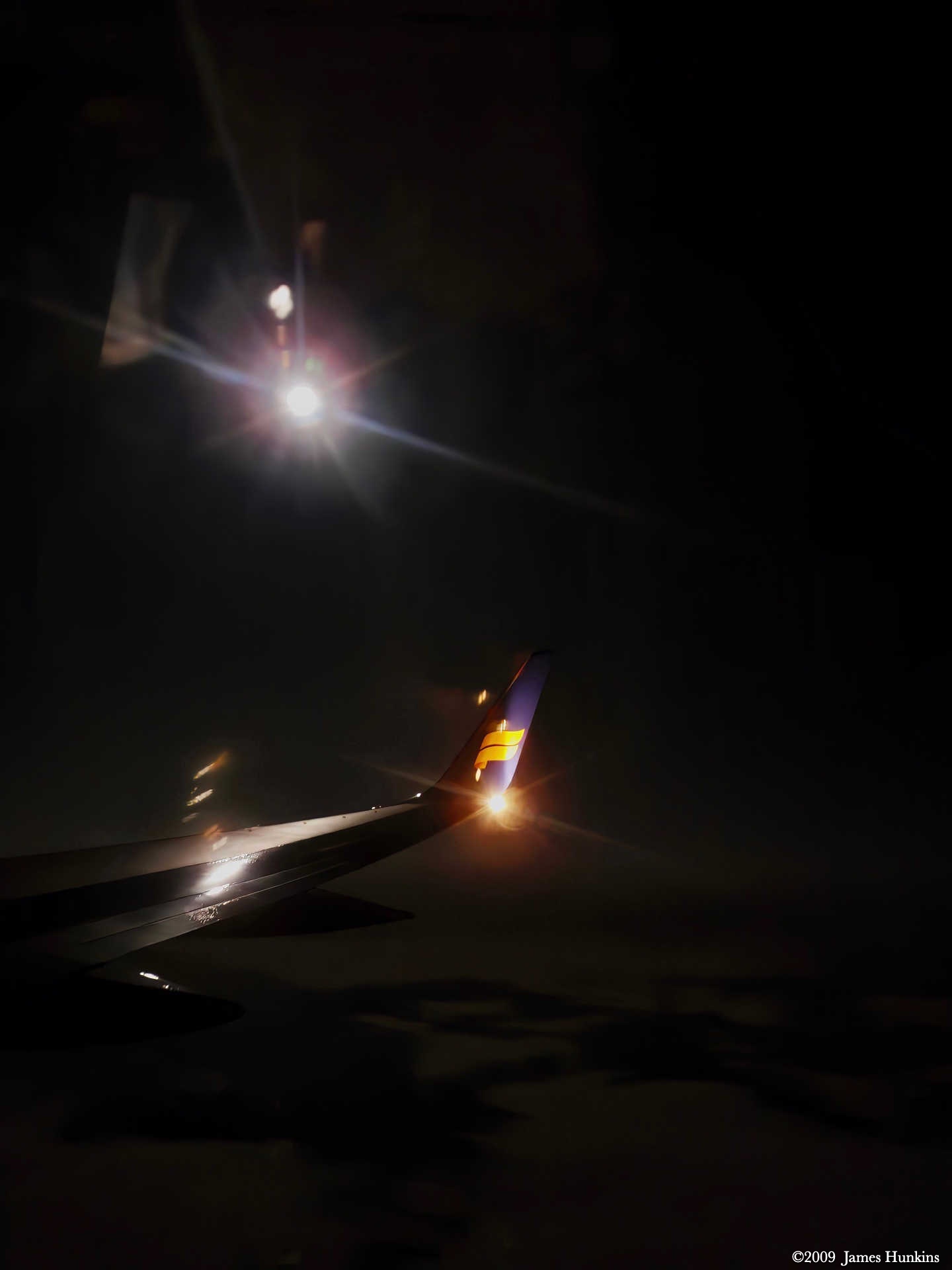
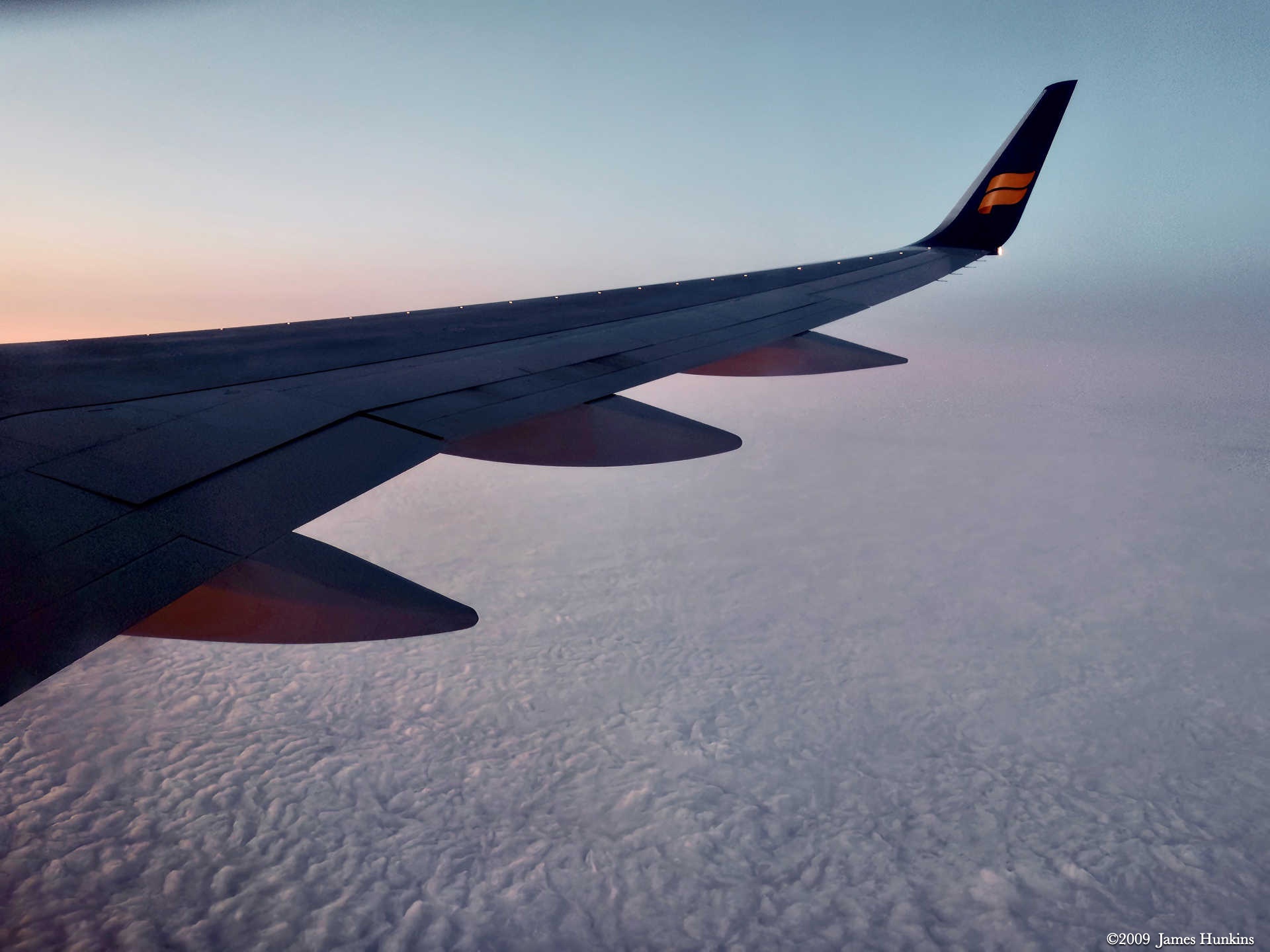
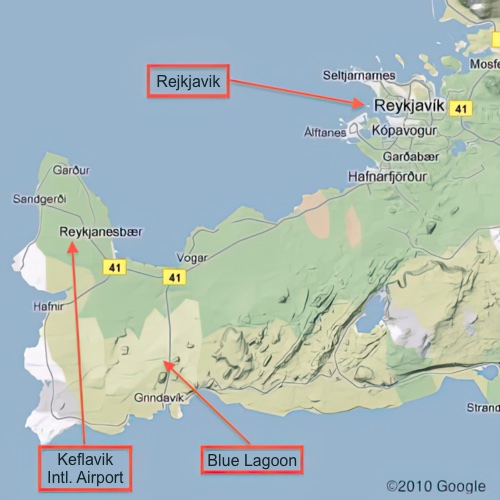
To start the adventure, we landed at the Keflavik International Airport after an all-night flight. Blurry-eyed, trying to get a quick bite to eat, I discovered that my cash card was not working. Luckily, our guide, Greg, bought me a sandwich.
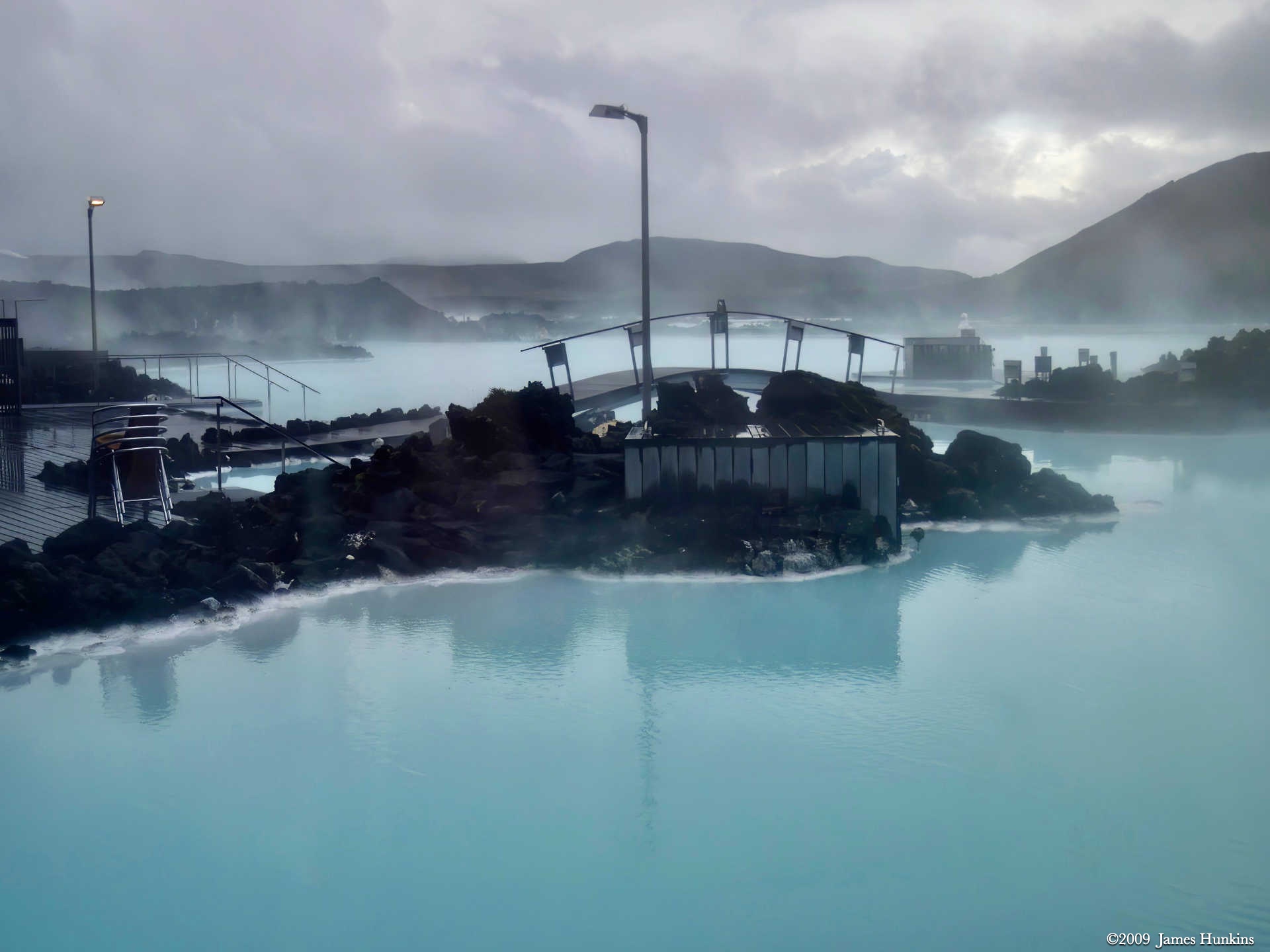
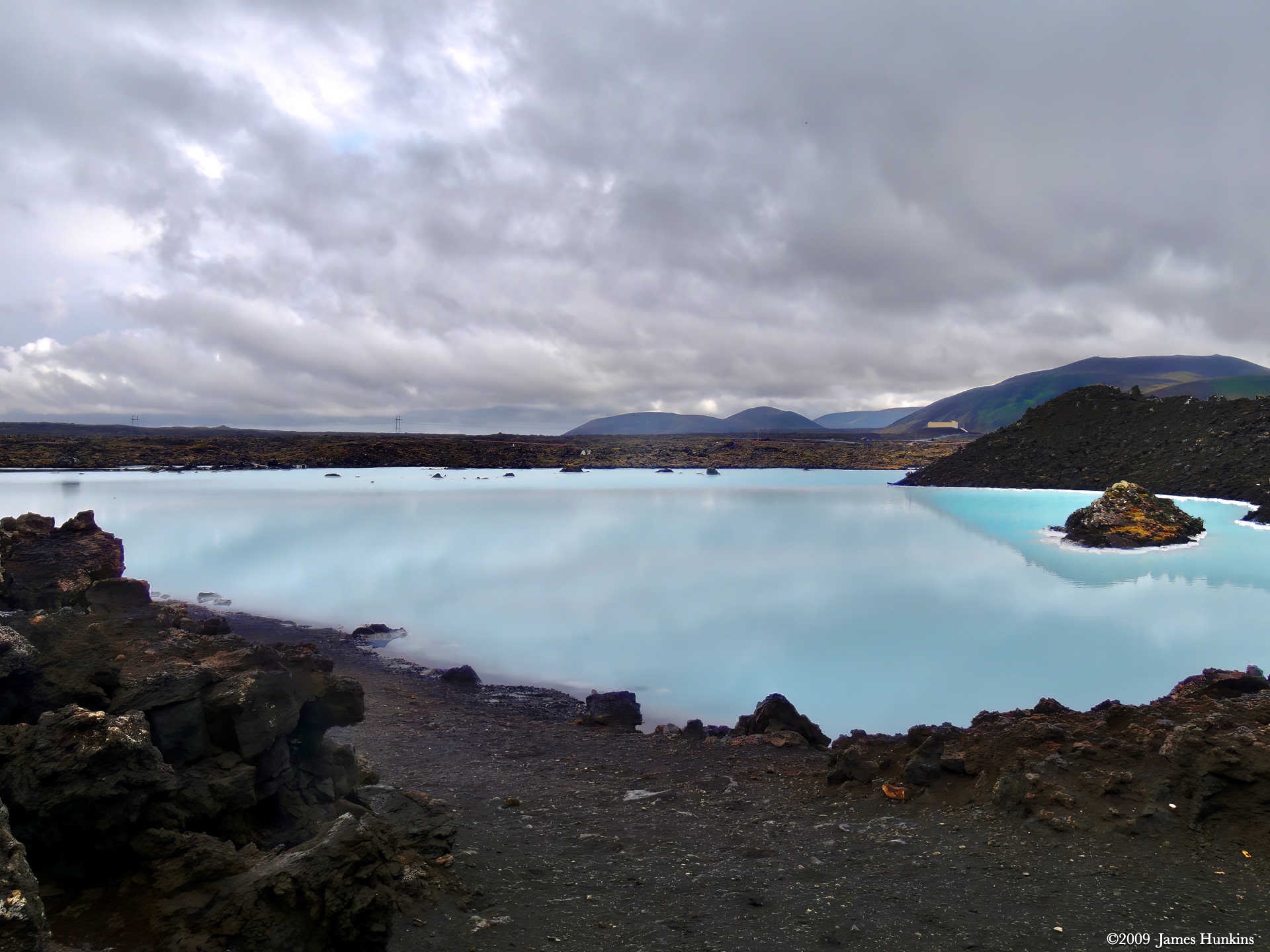
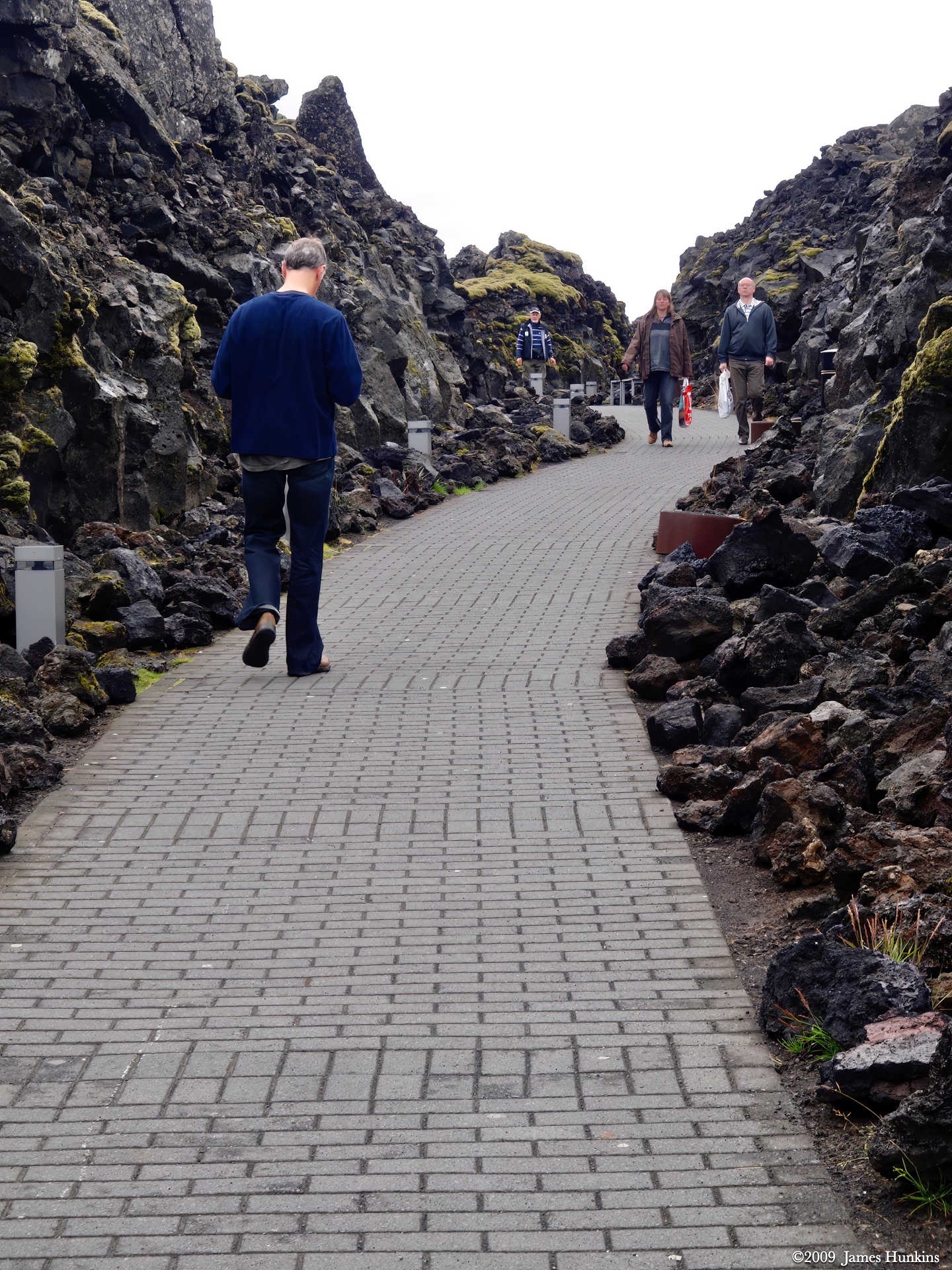
The next stop, as we headed into Reykjavík, was a quick soak and white mud facials at the legendary Blue Lagoon hot springs. And no, the white mud did not make me look any better, especially after the night flight. It is interesting though that these hot springs are part of some ponds that were previously used by the thermal power-generating plant next door.
We settled into our hotel (Fosshotel Baron) on the beautiful harbor in Reykjavík. After a quick unpack, we wandered up into town to have an easy lunch at a small vegetarian restaurant. Reykjavík still holds most of its small-town atmosphere and is very pleasant to explore.
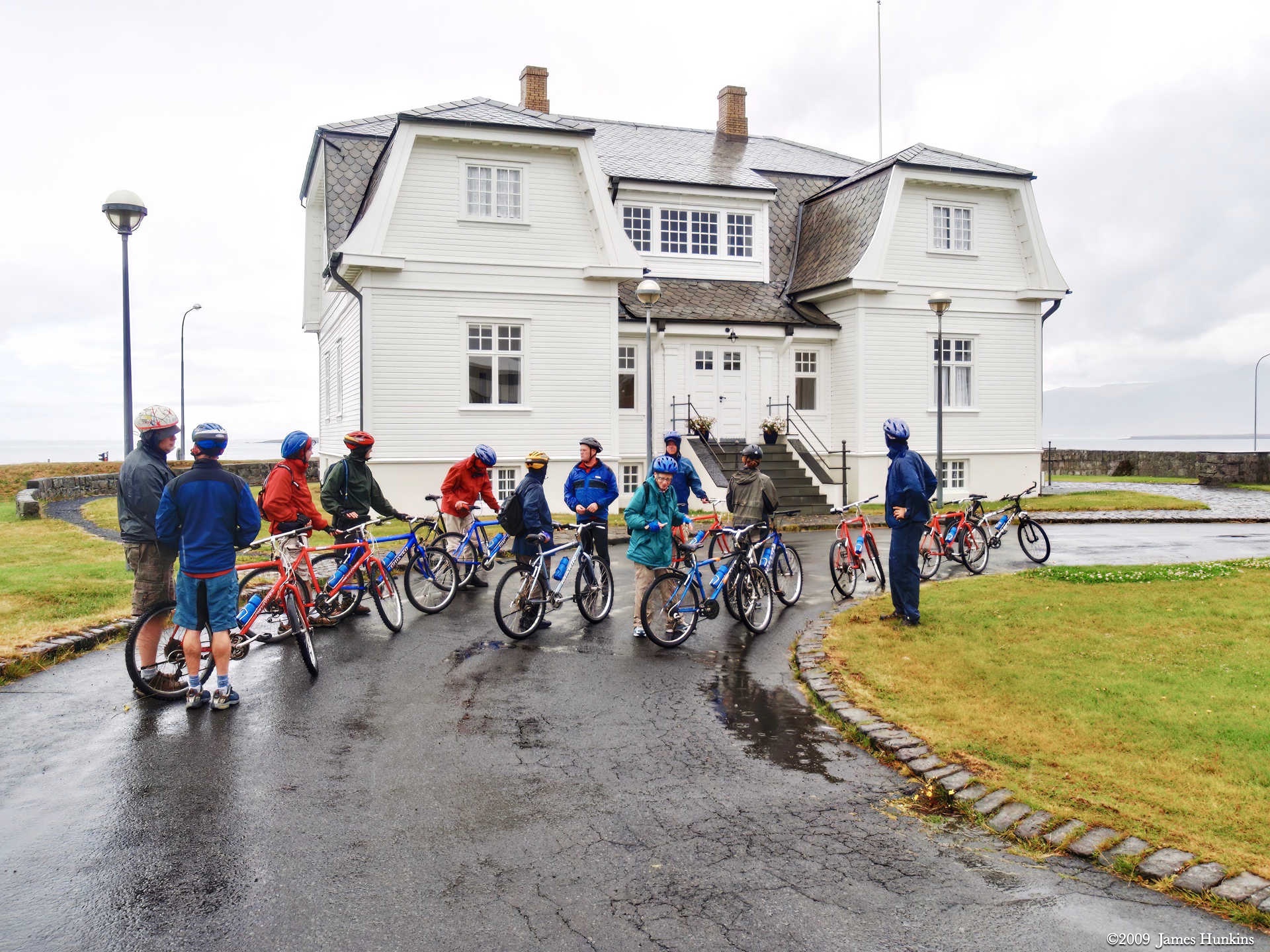
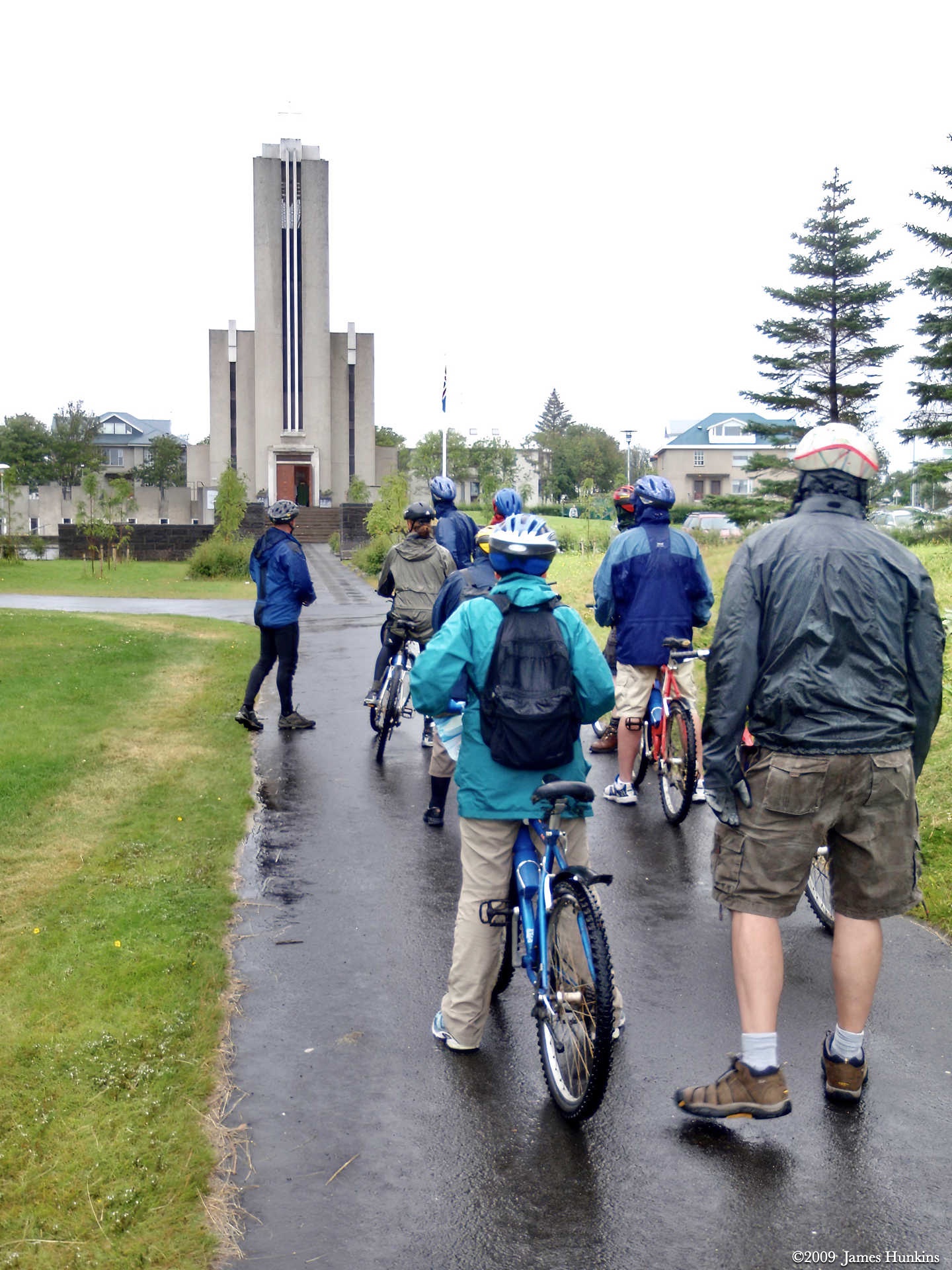
After lunch, we all met during a light rain shower for a ride through town on mountain bikes, which was a nice warm-up for the long ride the next day. With the under-inflated wide tires, we set off in the quiet streets.
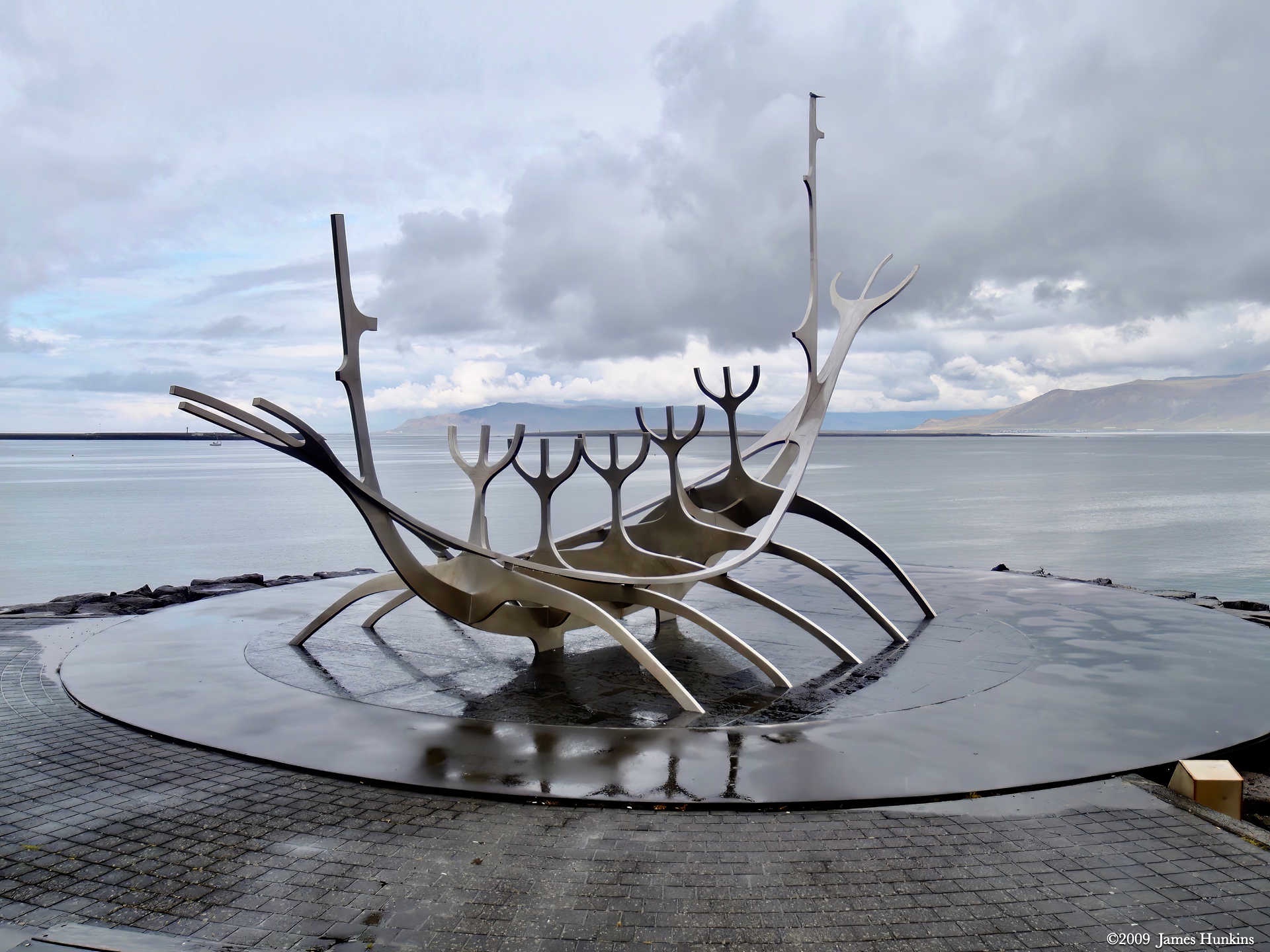
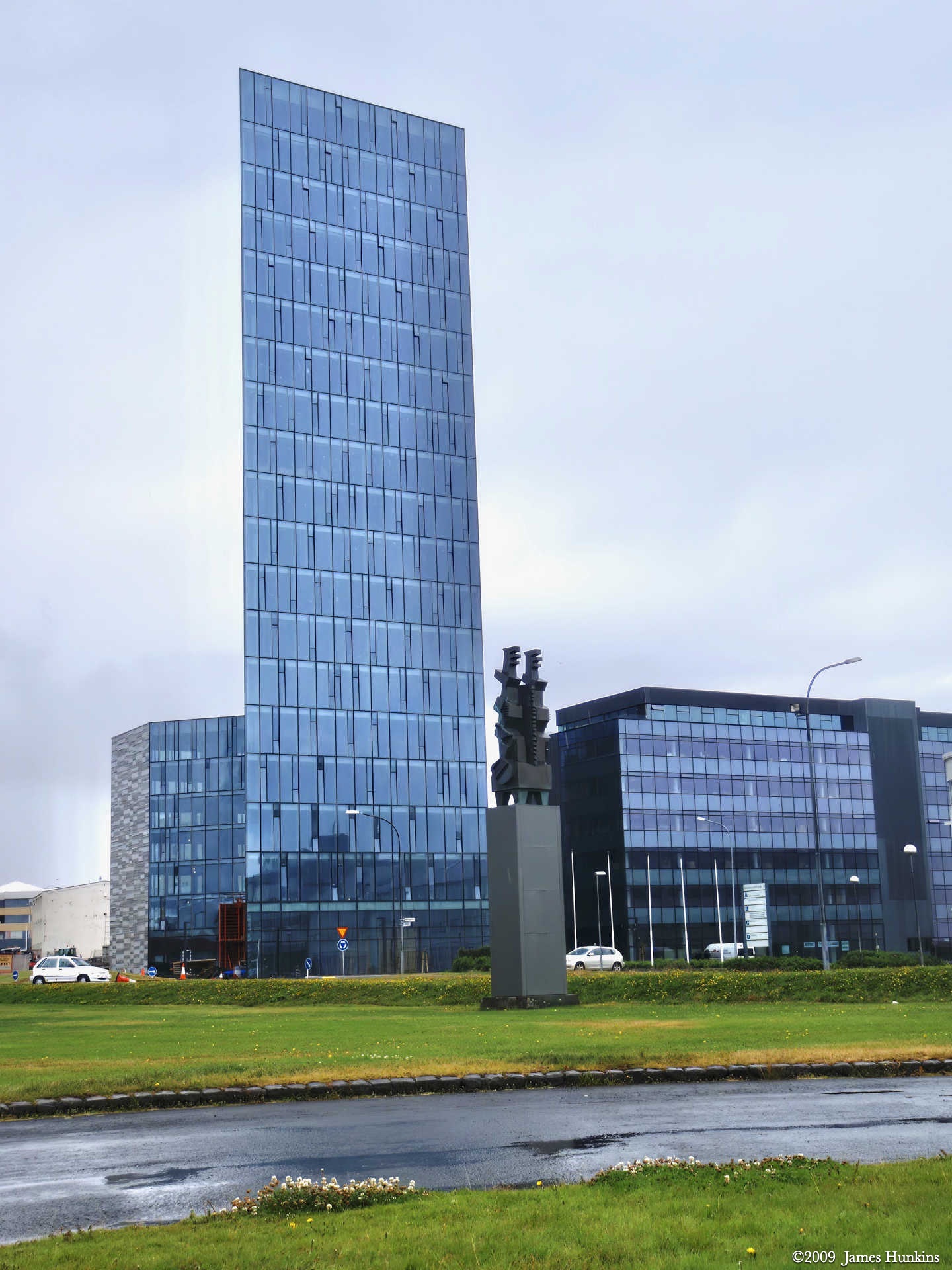
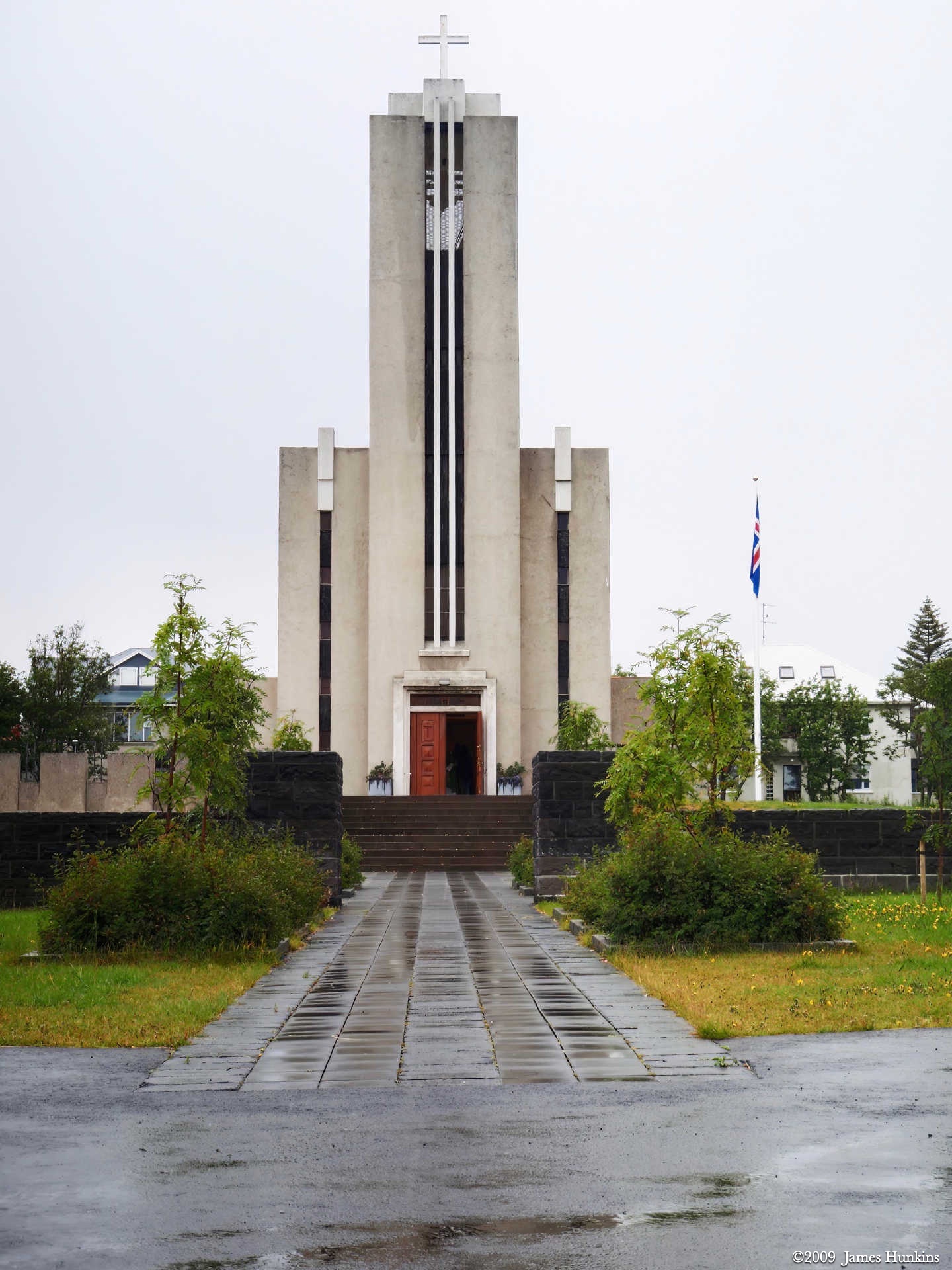
Starting with a sculpture representing a Viking boat, we rode along the harbour and then up into town. The architecture varied from ultra-modern skyscrapers to older government houses, to tall churches and sporting centers to Spanish-style house groupings. Along with the expected northern home designs mostly made of wood.
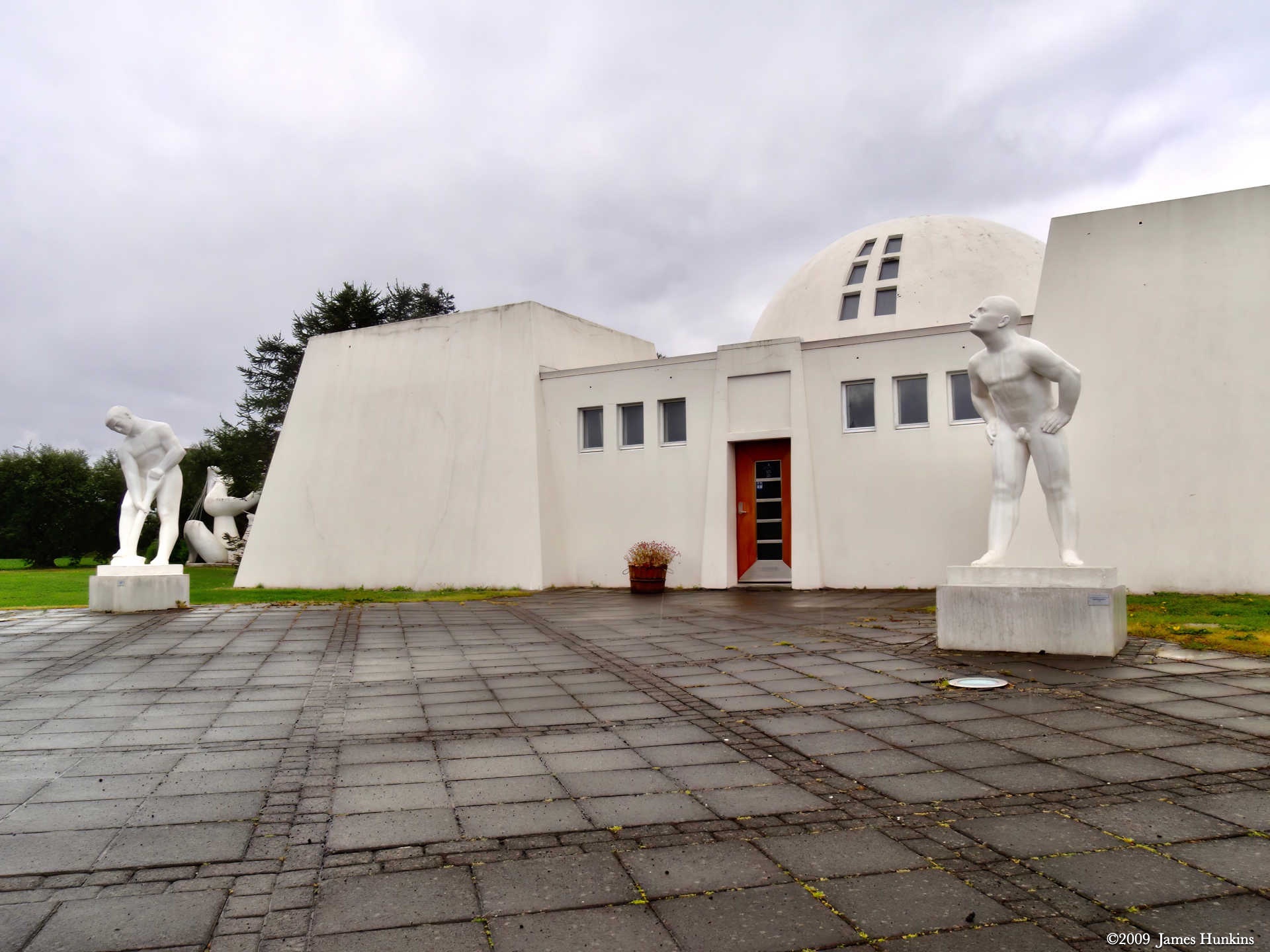
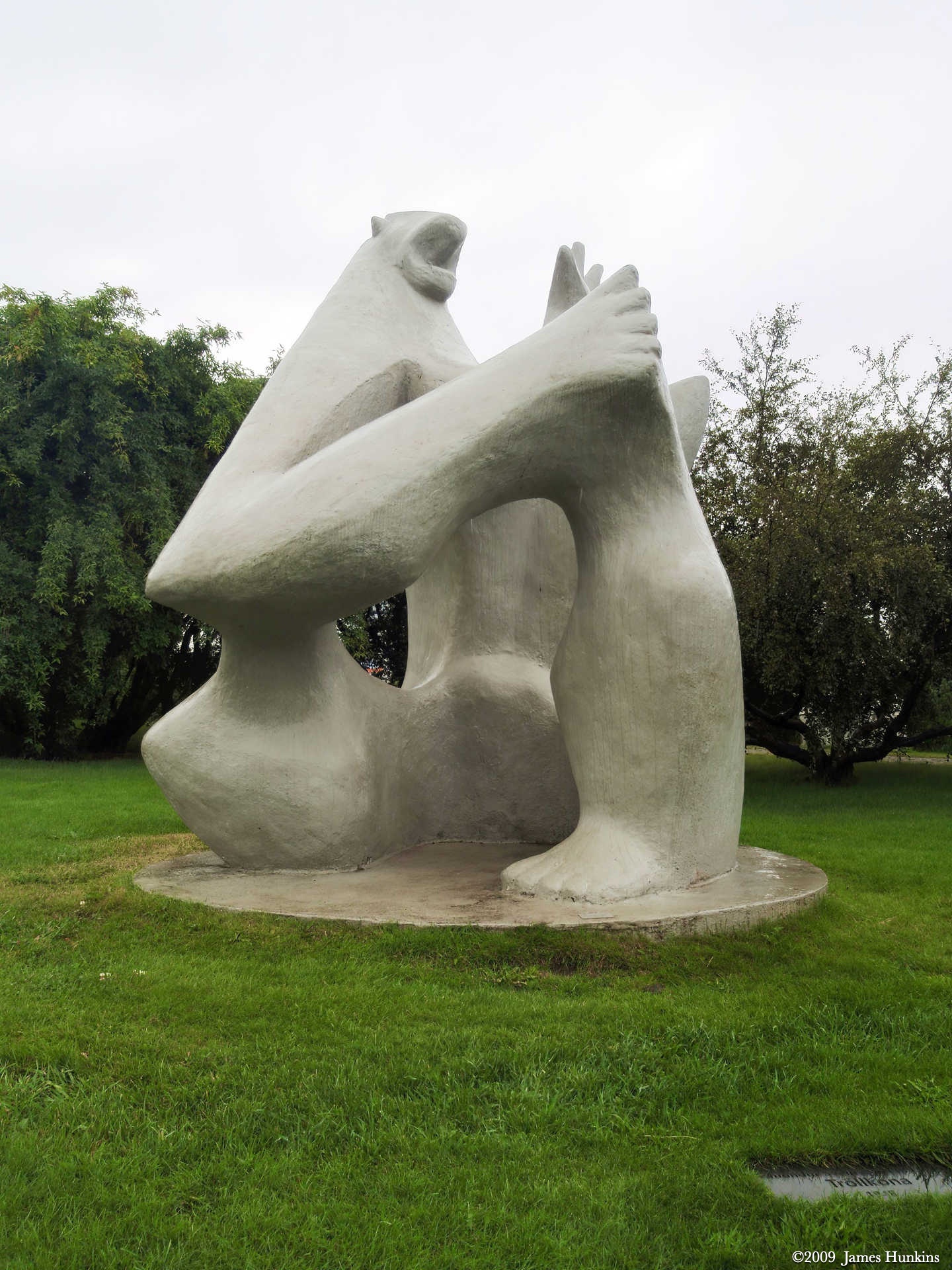
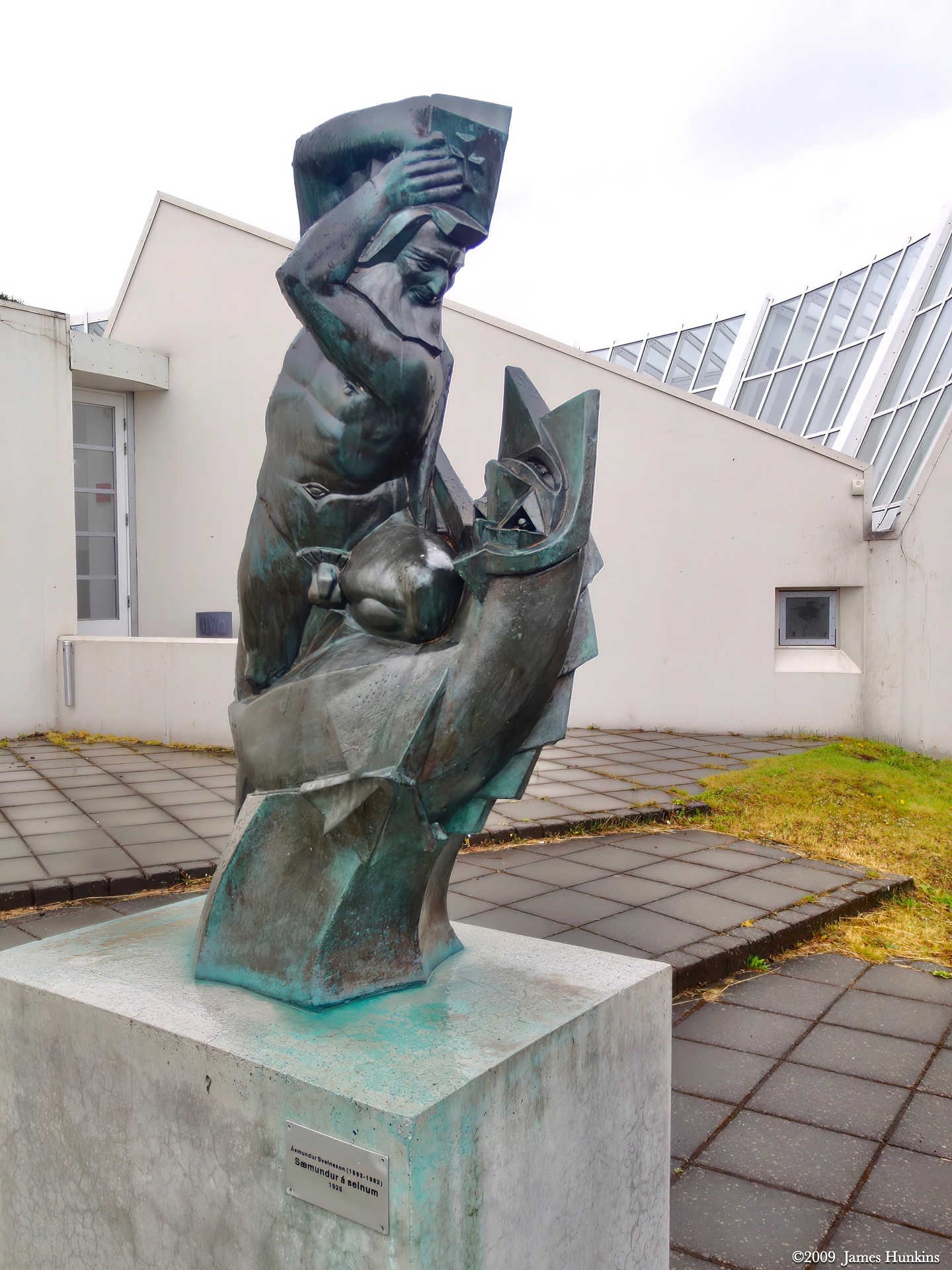
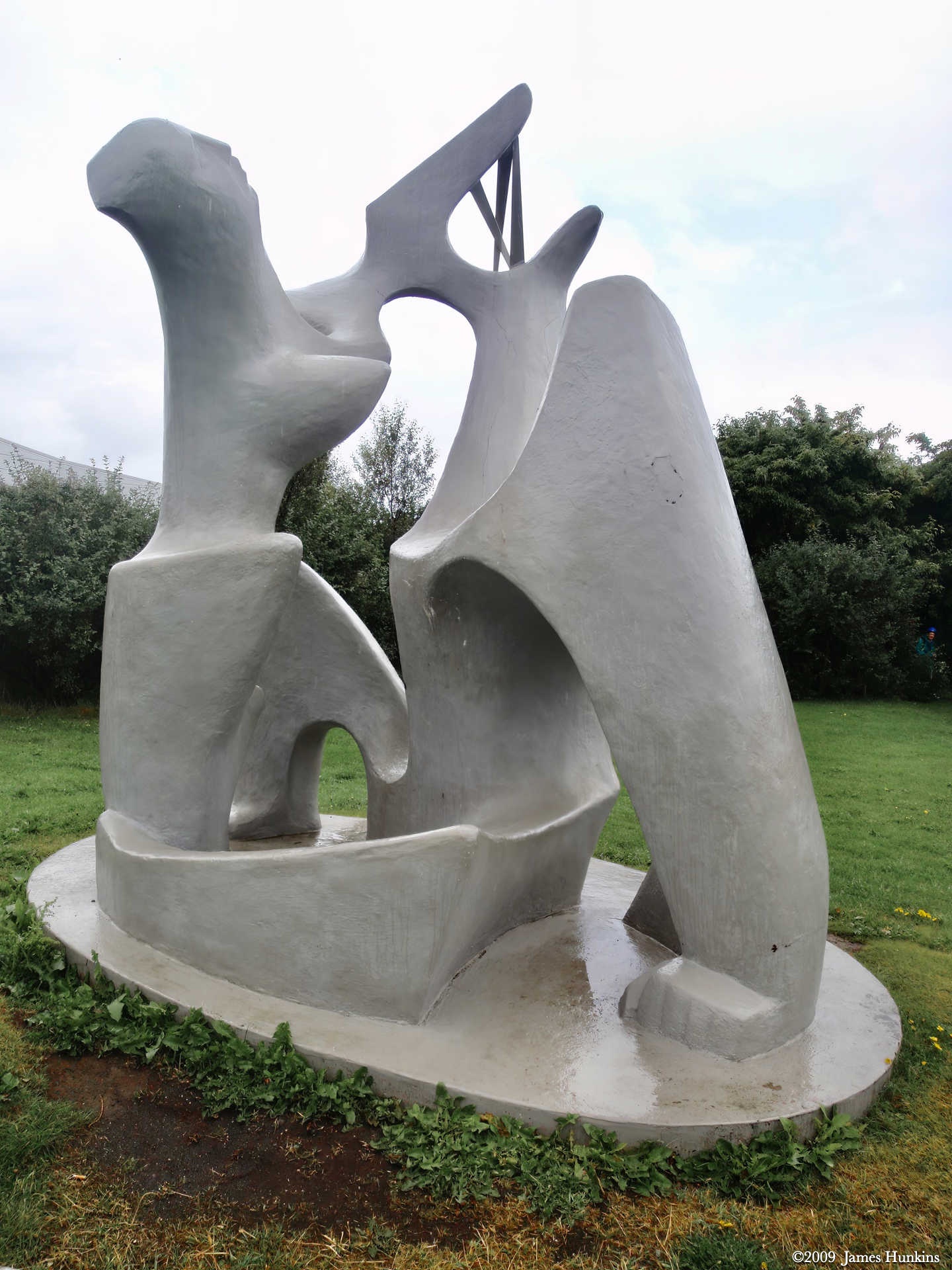
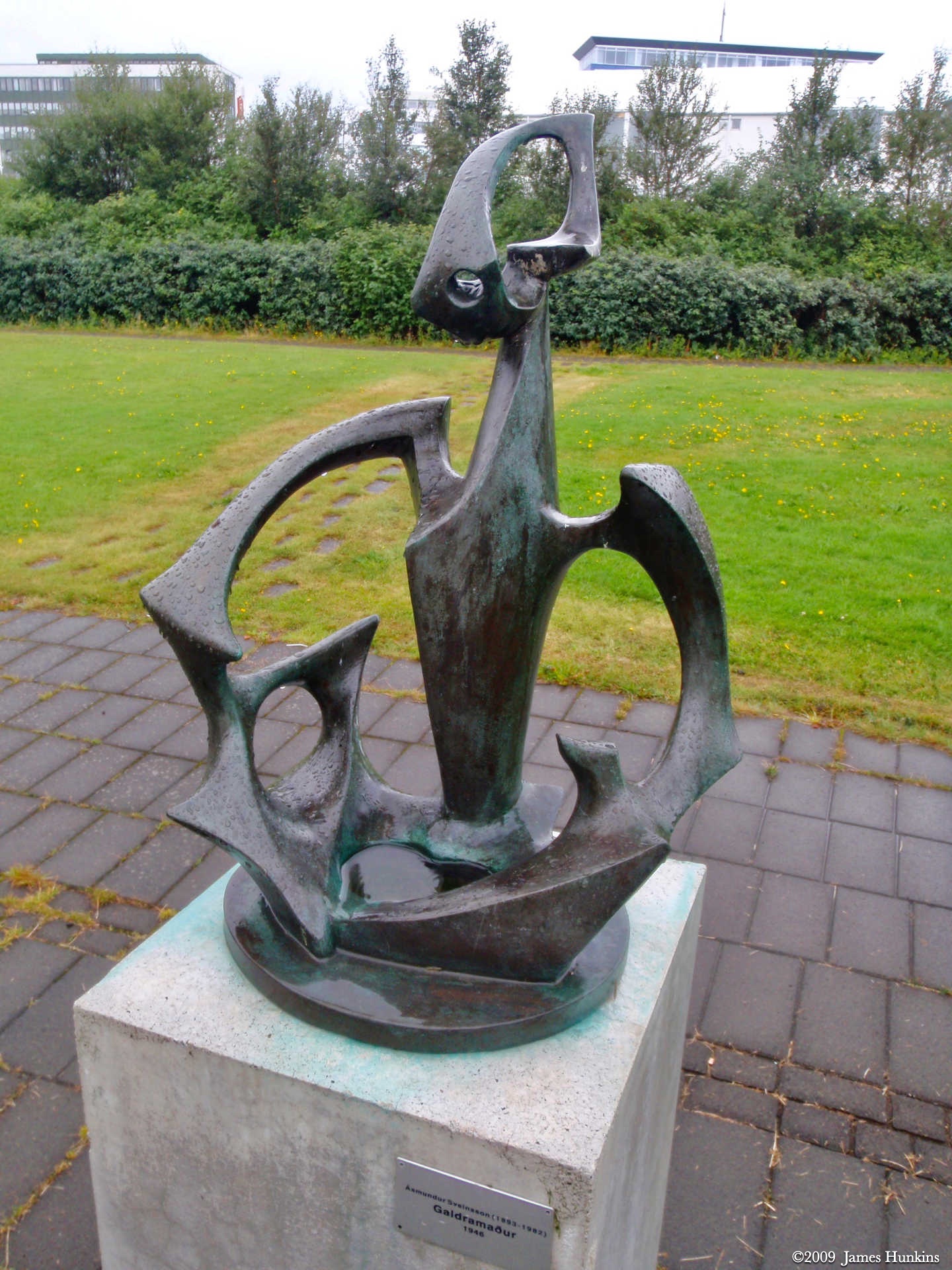
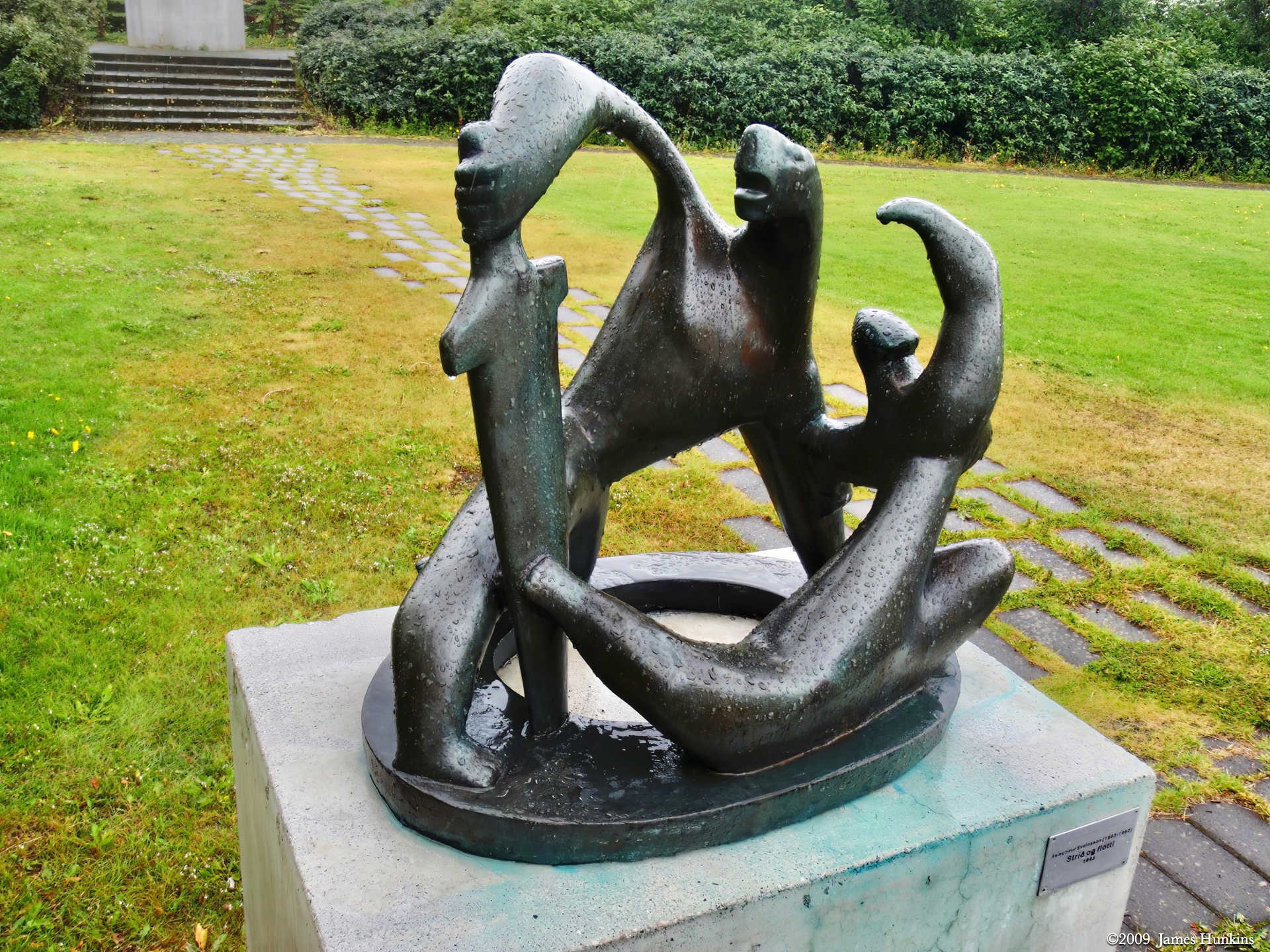
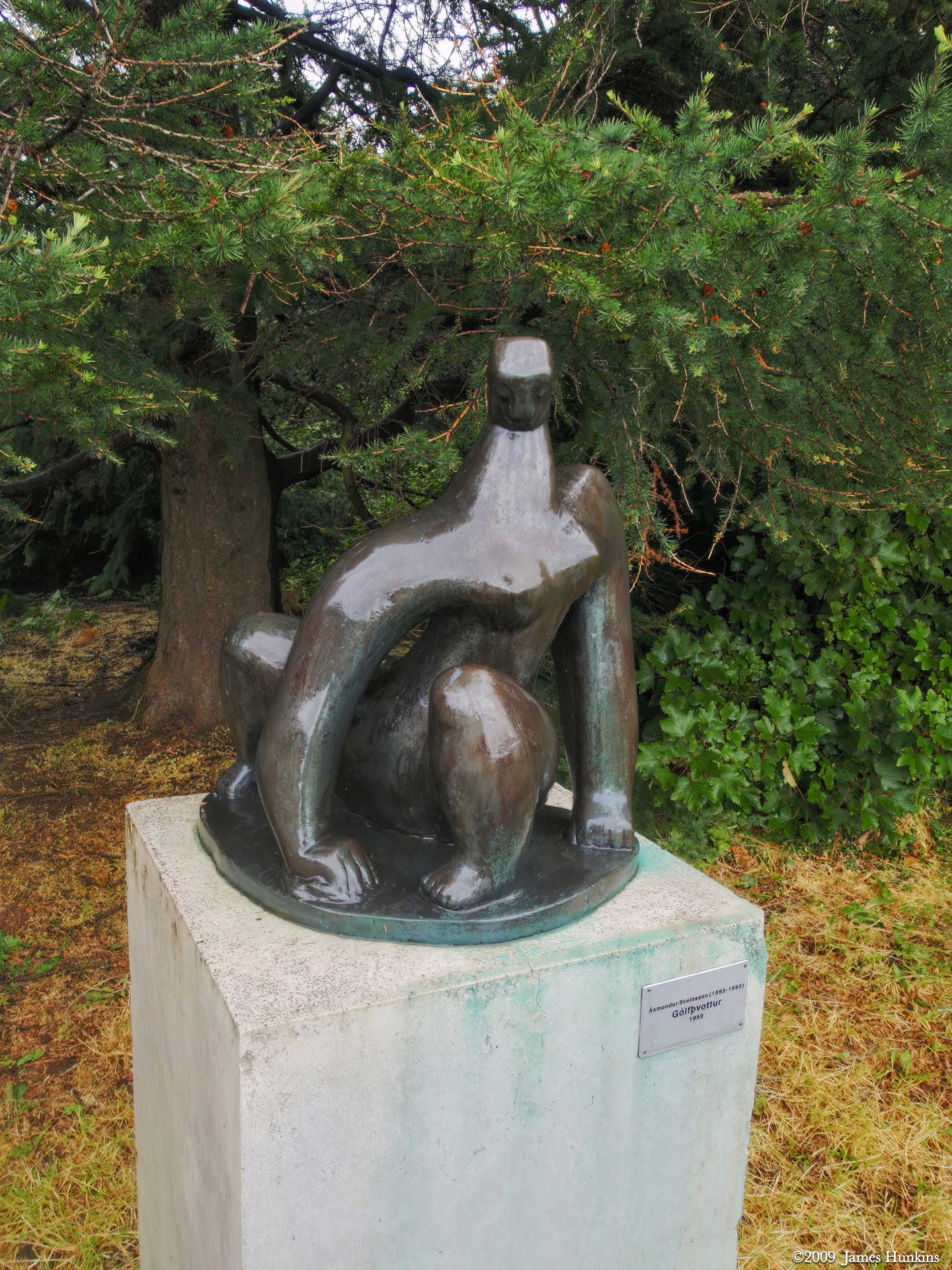
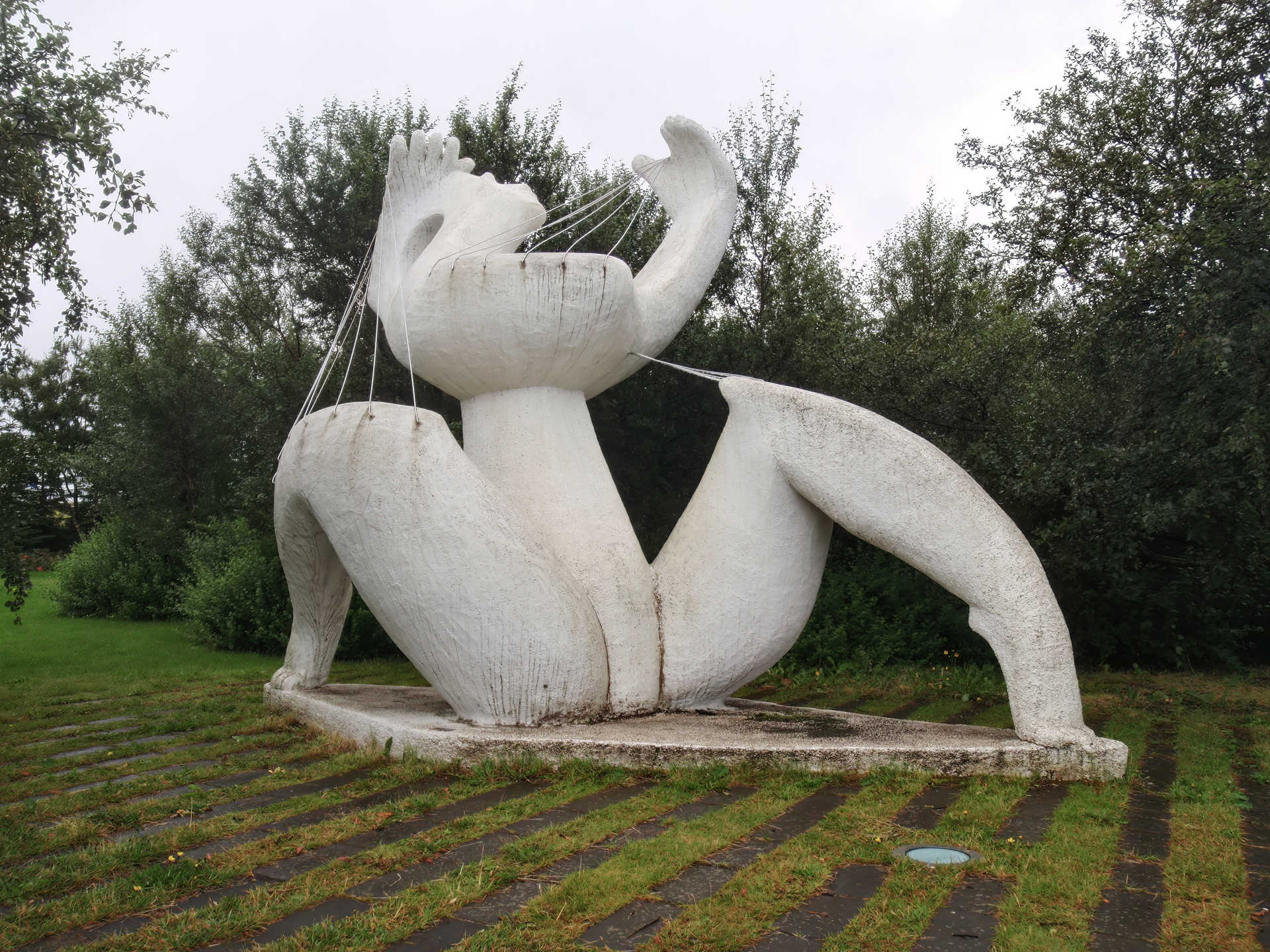
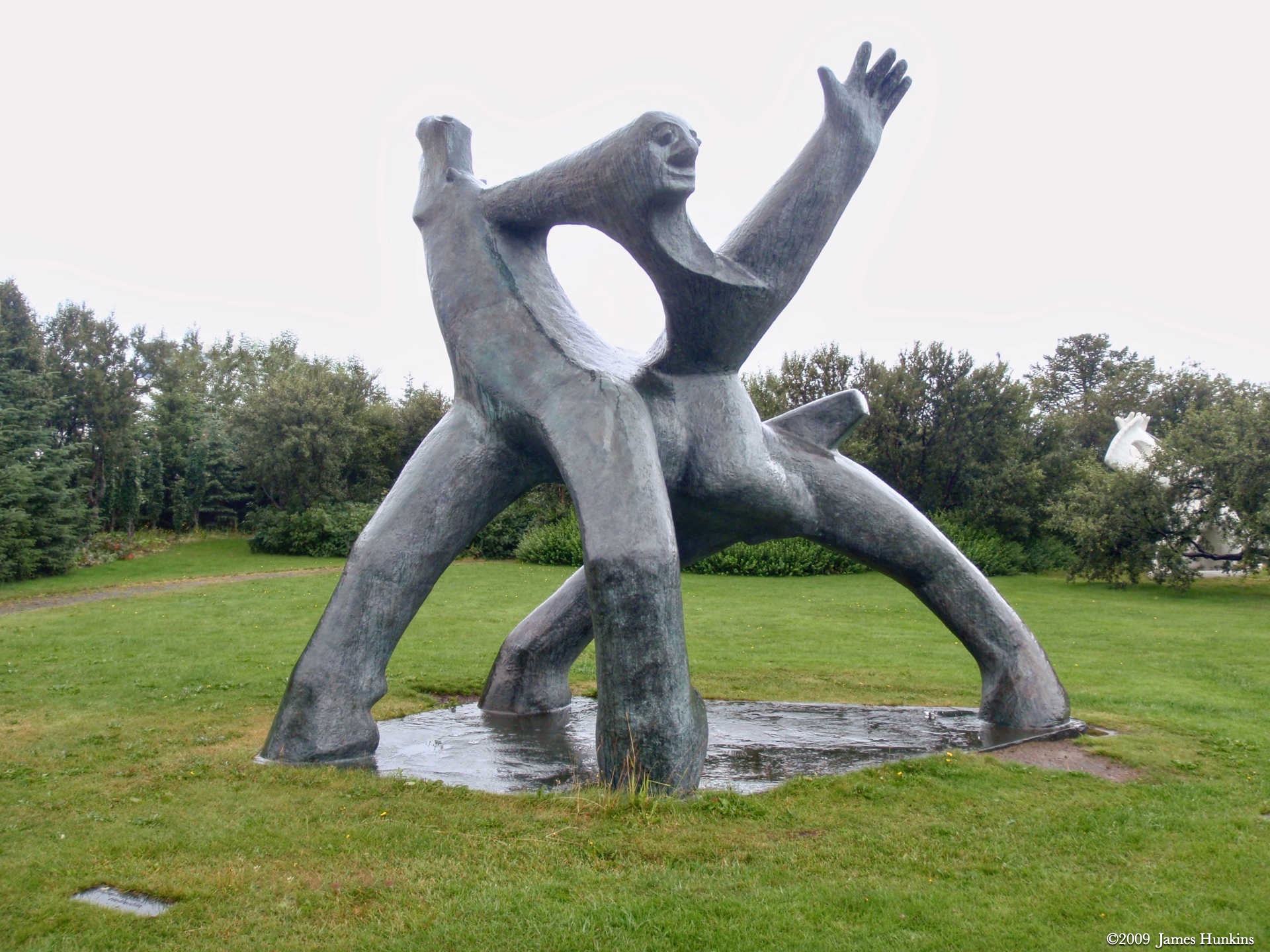
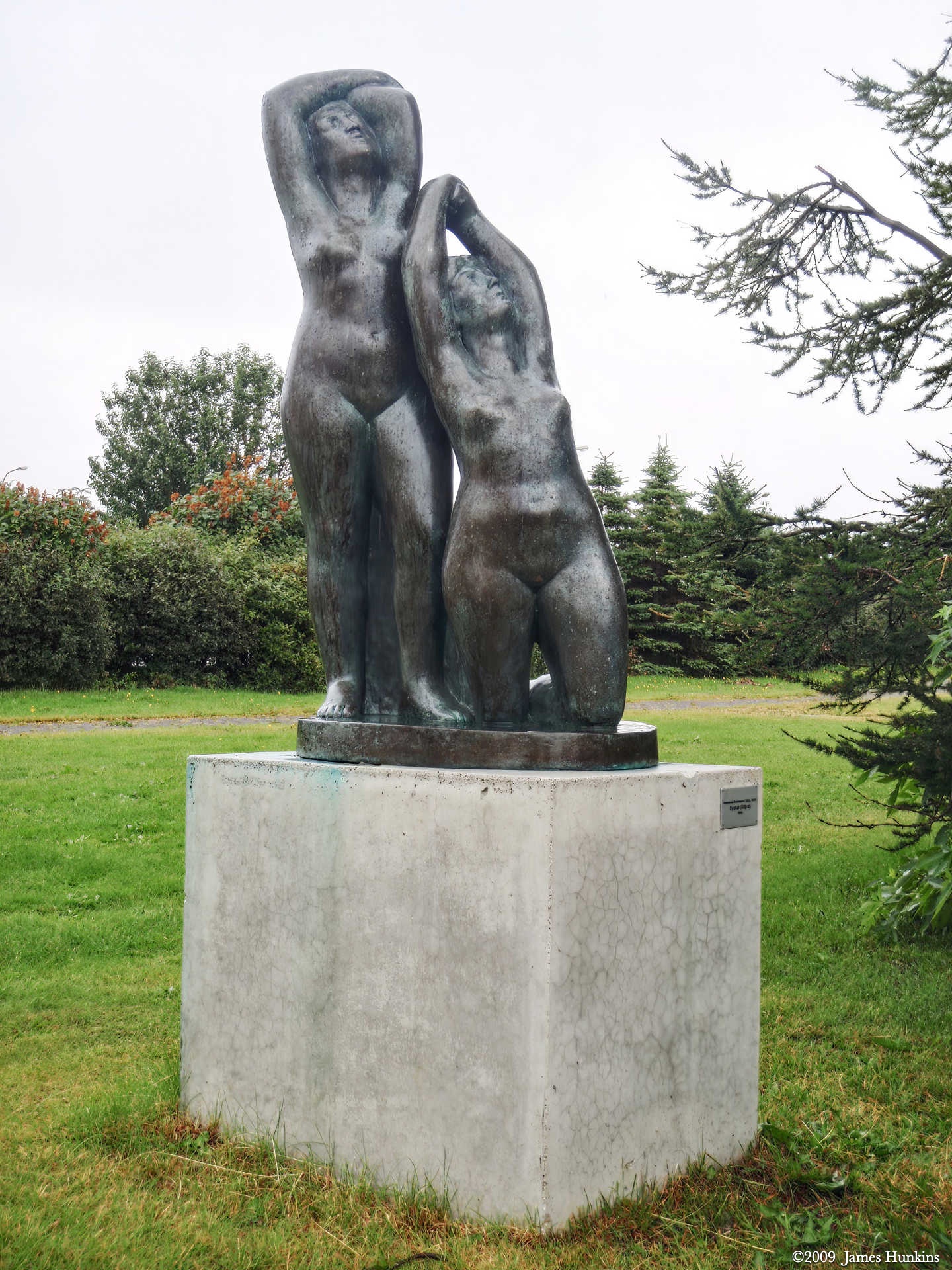
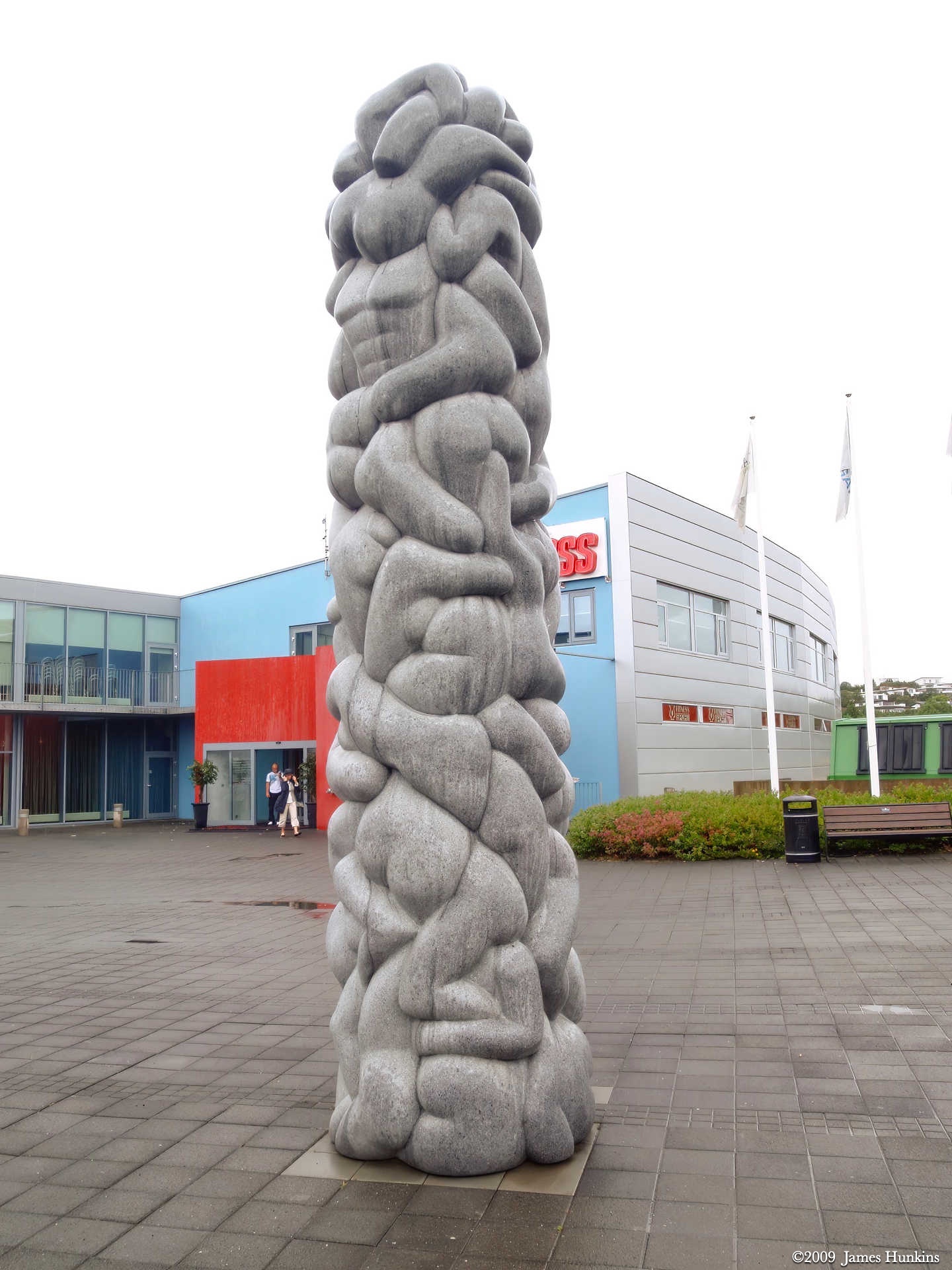
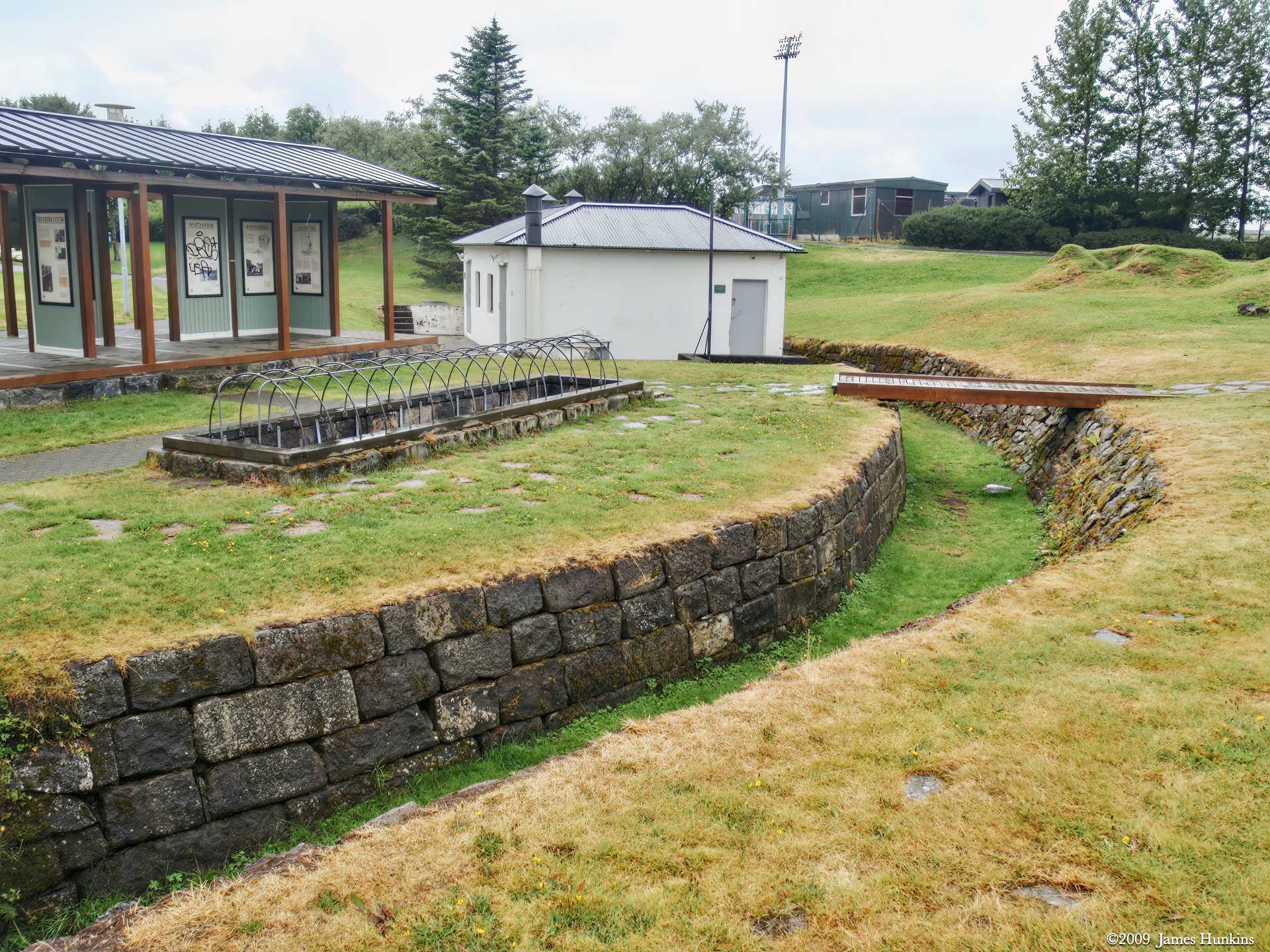
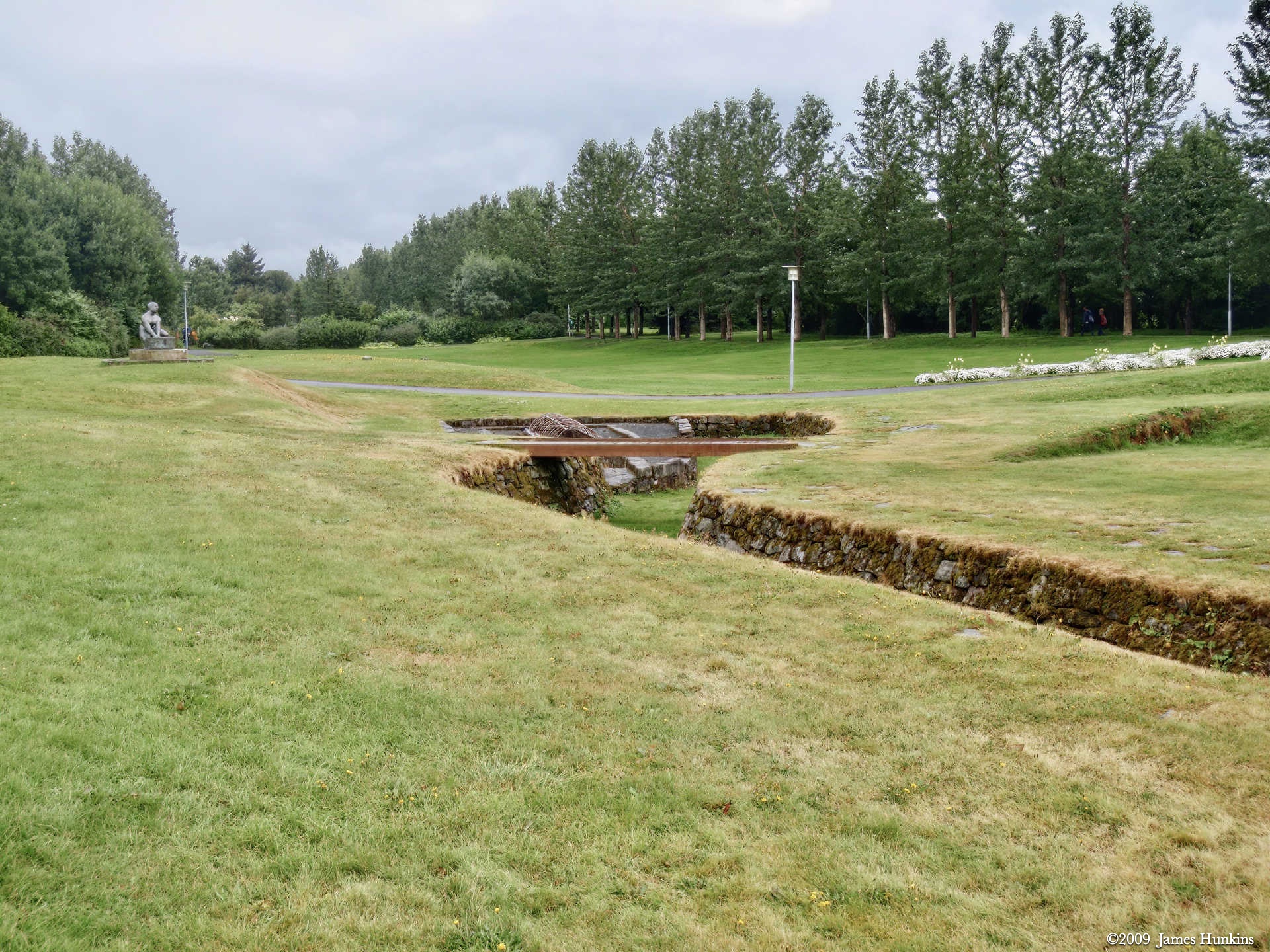
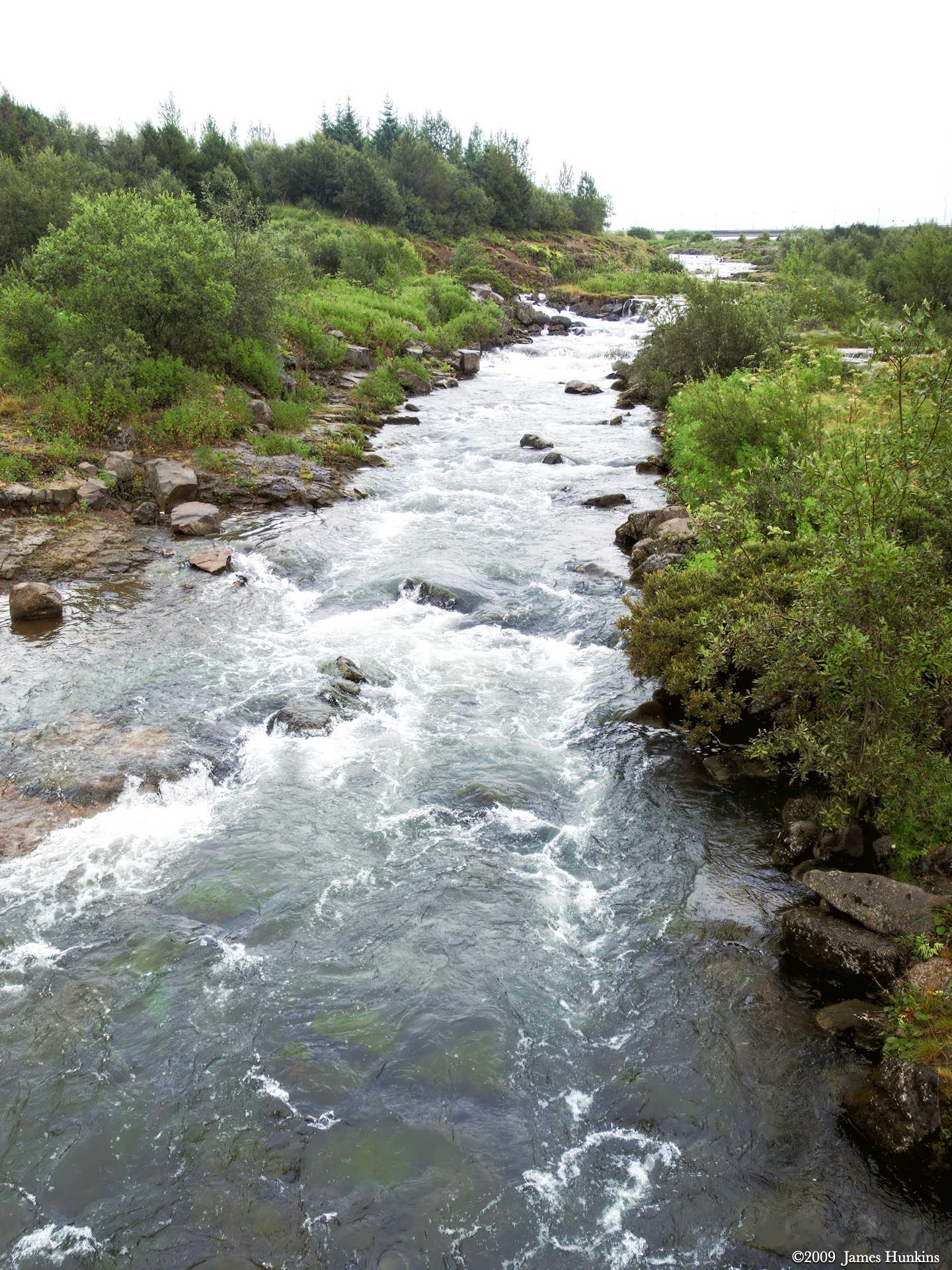
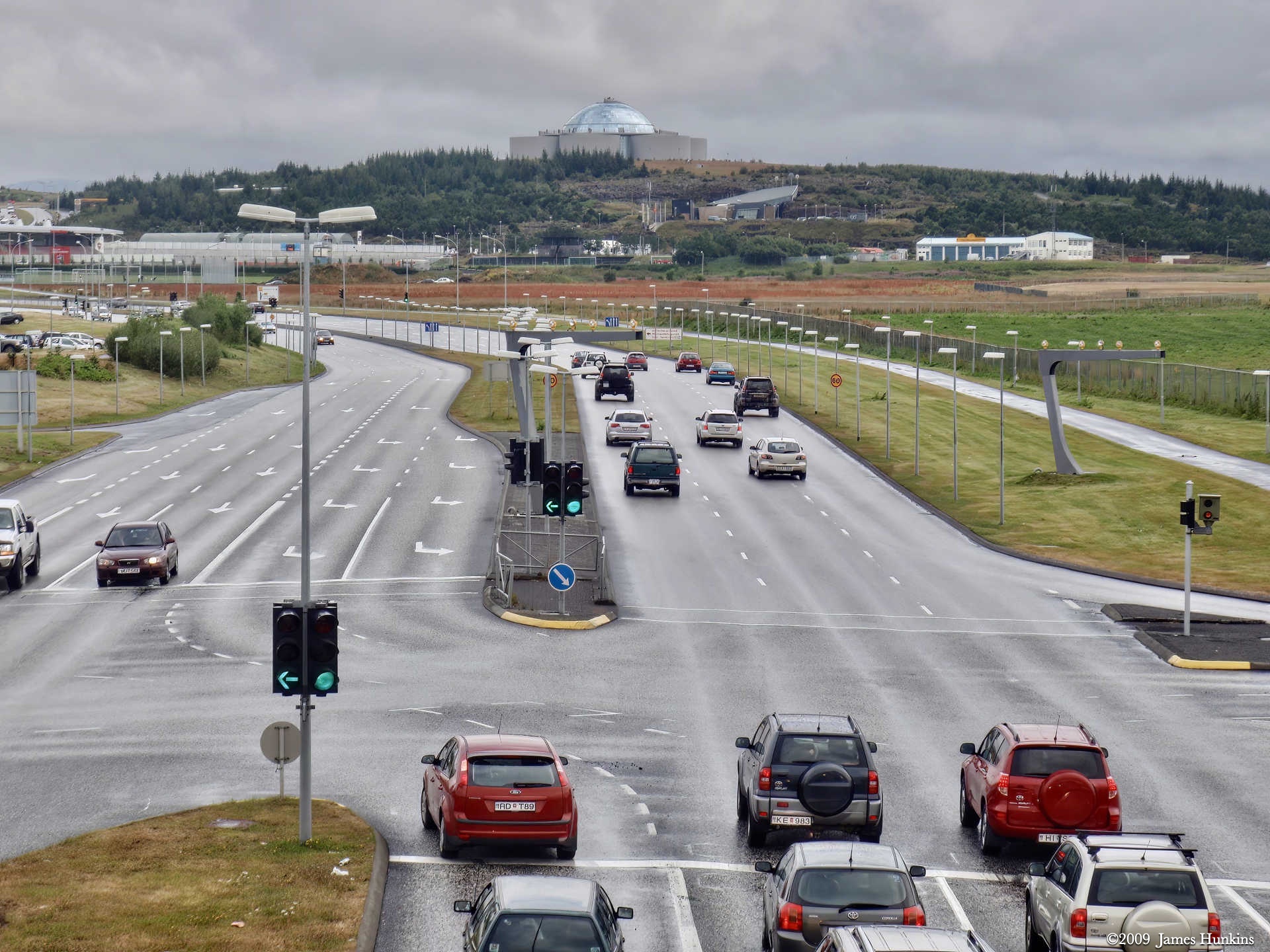
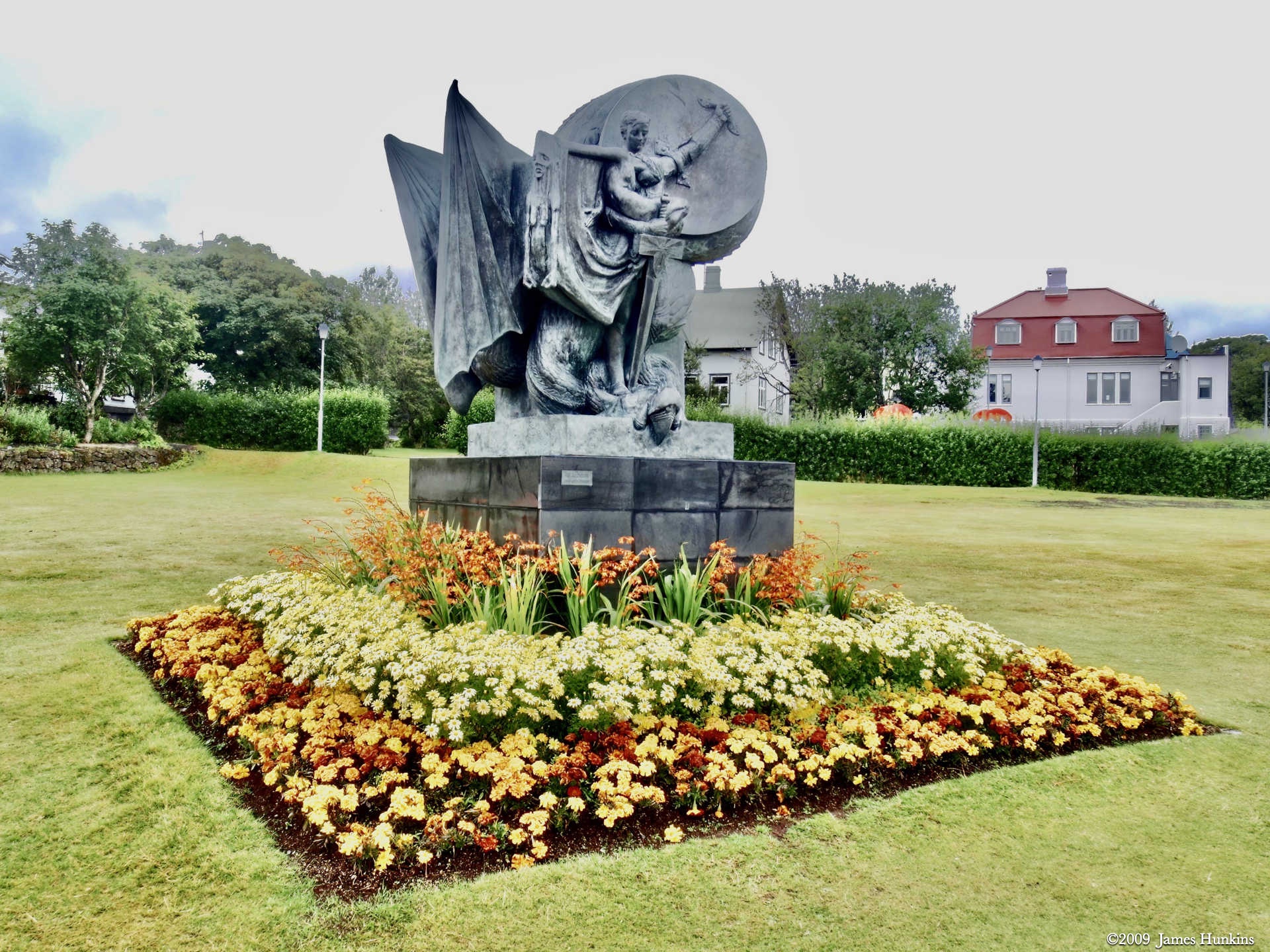
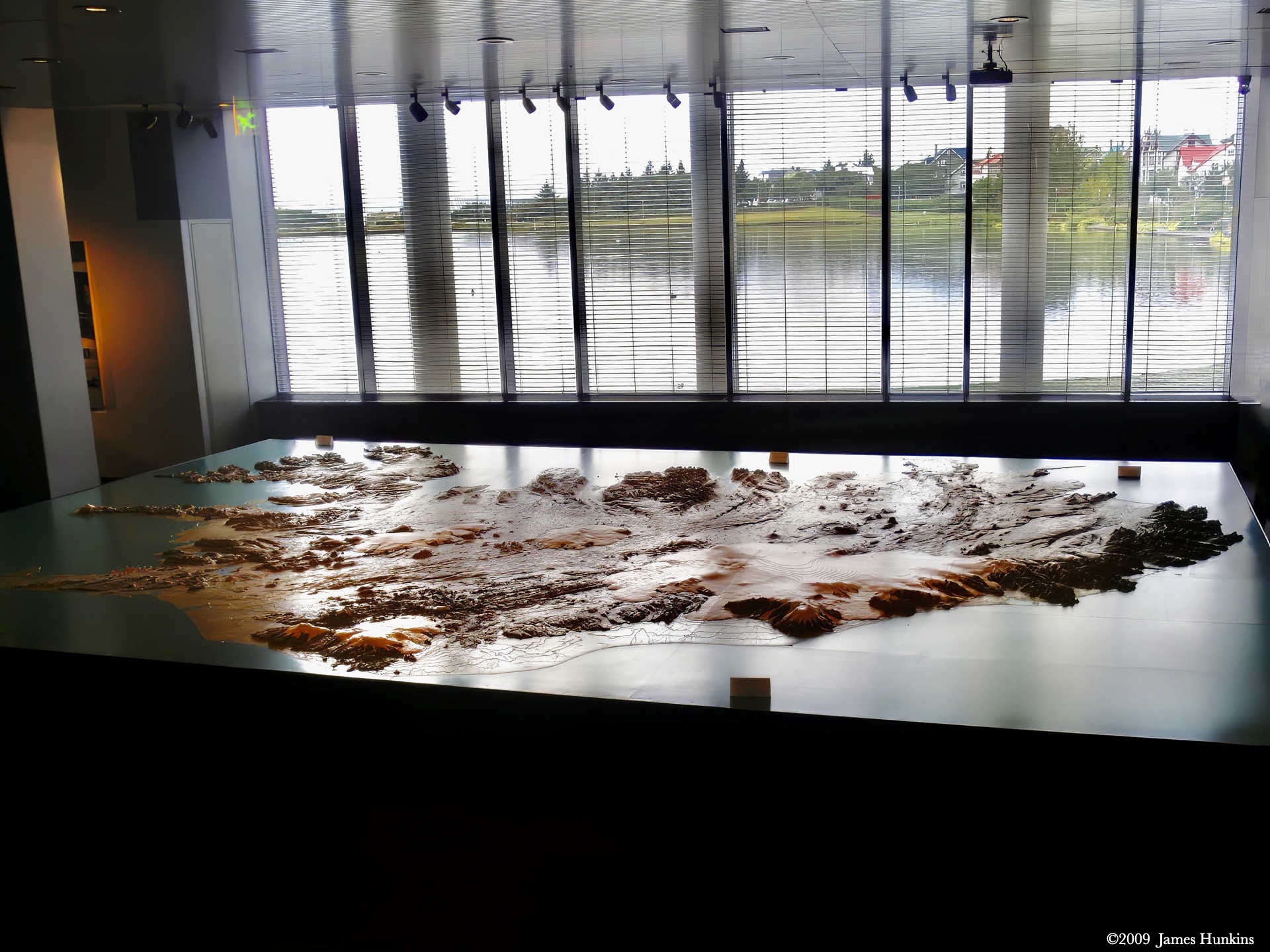
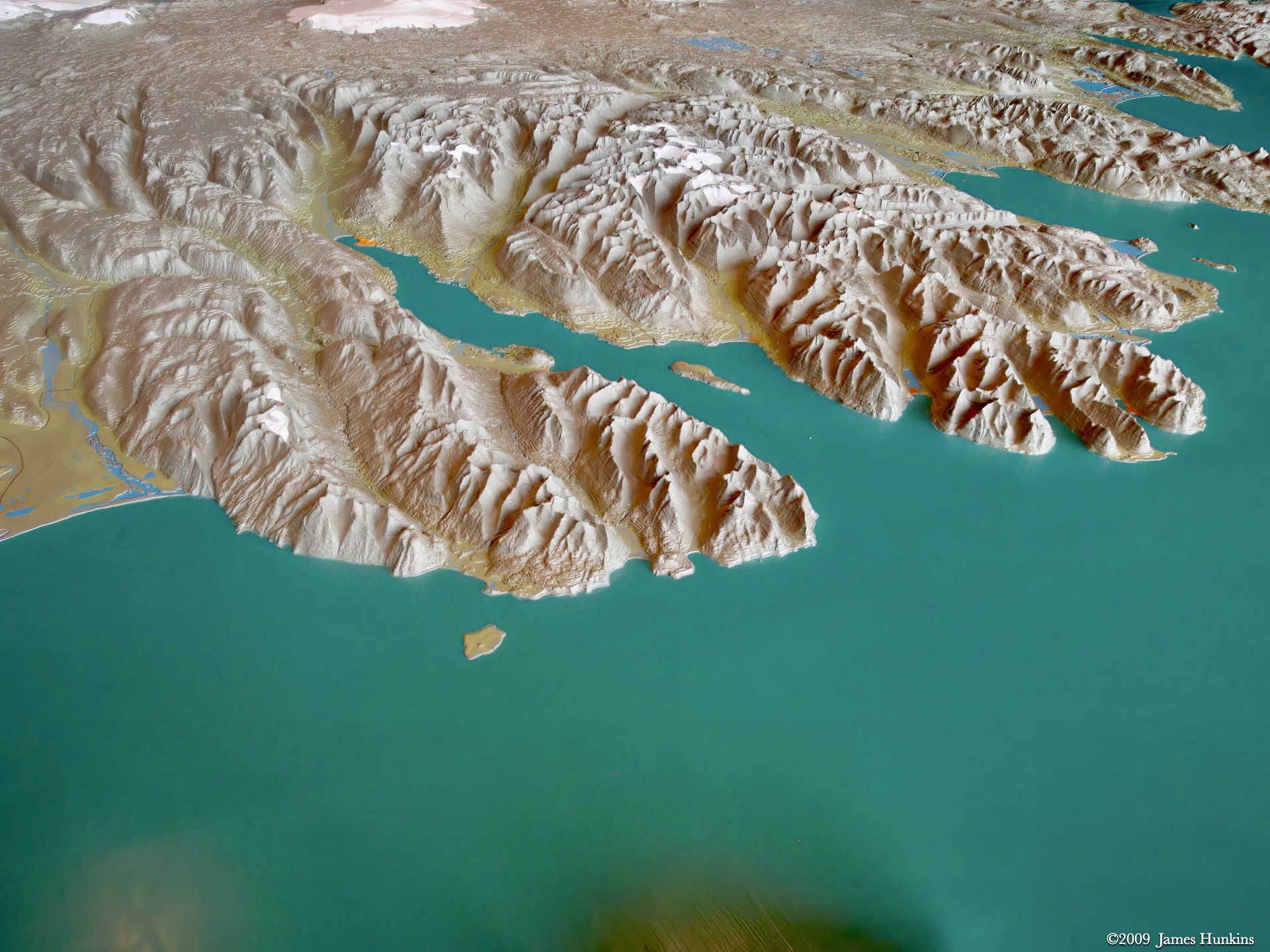
It was amazing how much sculpture there is in Reykjavík. We had a chance to stop by and view a series of sculptures in a nice open area before starting to head back. As we went towards the hotel, we crossed over a typical modern highway, got to ride along a small river going through town, and stopped for a quick look at a 3D model of the entire country. It made me realize that we were only going to see a very small part of it in this very busy week.
VIEWING HELP
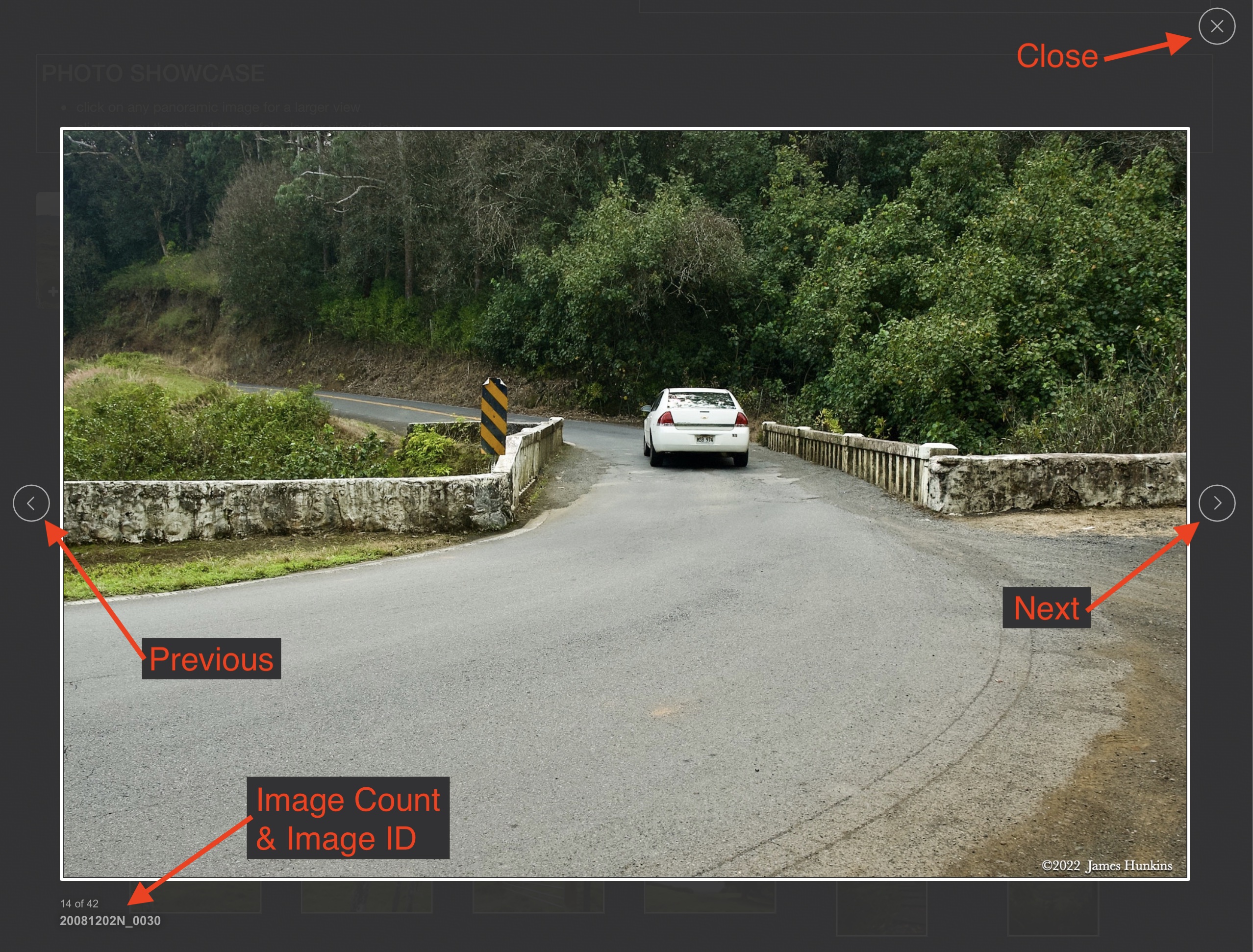
To close this window, click the X in the upper right hand corner. Or click anywhere outside of this window's area.
Photos from each day are shown in thumbnail (small) form. Panoramas are either wide or tall images, while normal photos are small rectangles. All photos shown in the PHOTO SHOWCASE section can be enlarged for better viewing. Photos will enlarge to fit your browser window width. Therefore, to view them at larger sizes simply make your browser window wider.
If there is any issue or the need to inquire/comment about an image, please refer to the Image ID label (see below) of the specific image along with the trip name found at the top of the browser window.
Video Clips
Depending on the browser, some of the controls may not always be supported.
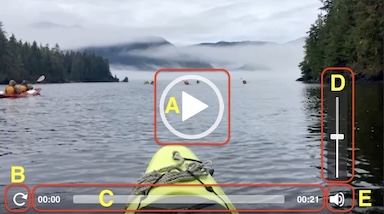
Most videos will start playing automatically. Sound is automatically off even if included with a video. See D, E below for sound control.
A few small videos are set to loop endlessly, while most just play to the end.
- A: To start or stop a video, click in this area (even if the symbol is not visible)
- B: If a browser shows this symbol, clicking on it will restart the video from the beginning
- C: Progress bar - will display total video time on the right.
- D, E: This seems to have the most variants between browsers. If the video description says 'w/ sound’, you can adjust the volume with this control
If neither is visible, move the cursor to the E area and either E and/or D will be visible
If E is visible but not D, click on E
Once D is visible, slide the bar up or down to adjust the volumn
Panoramas
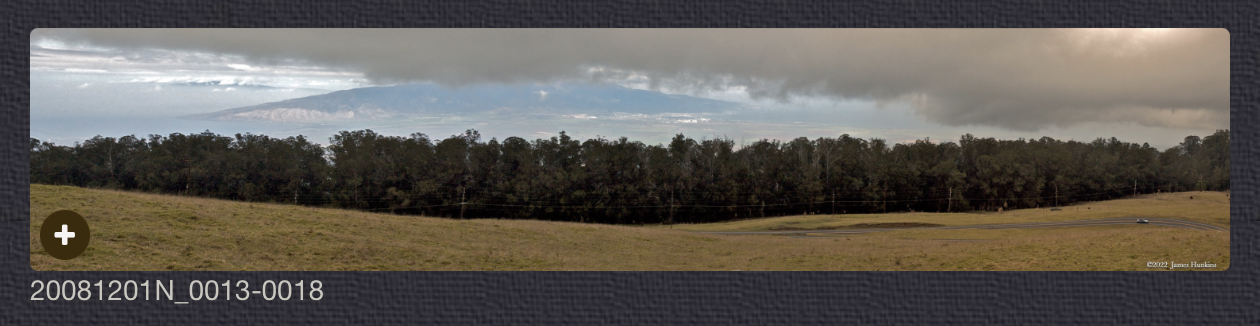
Clicking anywhere on a panorama thumbnail will cause the image to expand to fill the browser width. Clicking again anywhere in the browser window or scrolling the browser window will cause the expanded image to shrink back to its smaller thumbnail size.
The Image ID and description is found just below the thumbnail image on the left side.
Individual Photographs
If you click on any photo thumbnail, it will open a larger viewer which can be used to walk through all of the standard photos on the page. Once open, to go forward click on the > on the right side of the enlarged image. To scan backwards, click on the < on the left side. To close the larger images either click on the X in the upper right hand corner of the browser window or anywhere outside of the enlarged image.
The Image ID label can be found by hovering a cursor over the thumbnail image (may not be available on some tablets/phones) or, once enlarged, from the lower left hand side just under the image.
Additionally, in the same area as the Image ID (or the upper left corner for newer/updated sites) a count showing the current image number versus the total number of images available for viewing.

For newer or updated sites (look for the orange checkbox in the header of a sites main page), additional buttons have been added when viewing a full size image. From left to right, the buttons are:
- Email: will open an email with information and a link to the current image
- WhatsApp: if WhatsApp is on your system, will open a browser window to open WhatsApp and create a message with information and a link to the current image
- FaceBook: Will open a browser window to open Facebook and create a message with information and a link to the current image
- full screen: will take over the entire display versus just the browser in most systems; ESC returns to the brower only mode
- magnify: enlarges the image within the browser or full screen; if the image is larger than can be displayed it can be scrolled
- exit: will close the large image viewer returning to the thumbnails




Links:
PHOTO SHOWCASE
- click on any thumbnail image for a larger view/slideshow
-
 090809_0004NMoon at night over airplane wing
 -
 090809_0021NAirplane wing above clouds - early morning flight time
 -
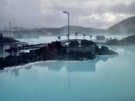 090809_0024NBlue Lagoon
 -
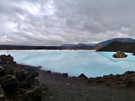 090809_0028NBlue Lagoon
 -
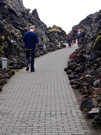 090809_0030NWalkway at Blue Lagoon
 -
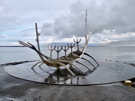 090809_0031NSolfar (Sun Voyager) long-ship sculpture on Reykjavik’s waterfront
 -
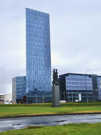 090809_0033NPálmar Kristmundsson, Reykjavik, office tower
 -
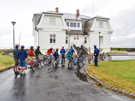 090809_0034NHöfði House
 -
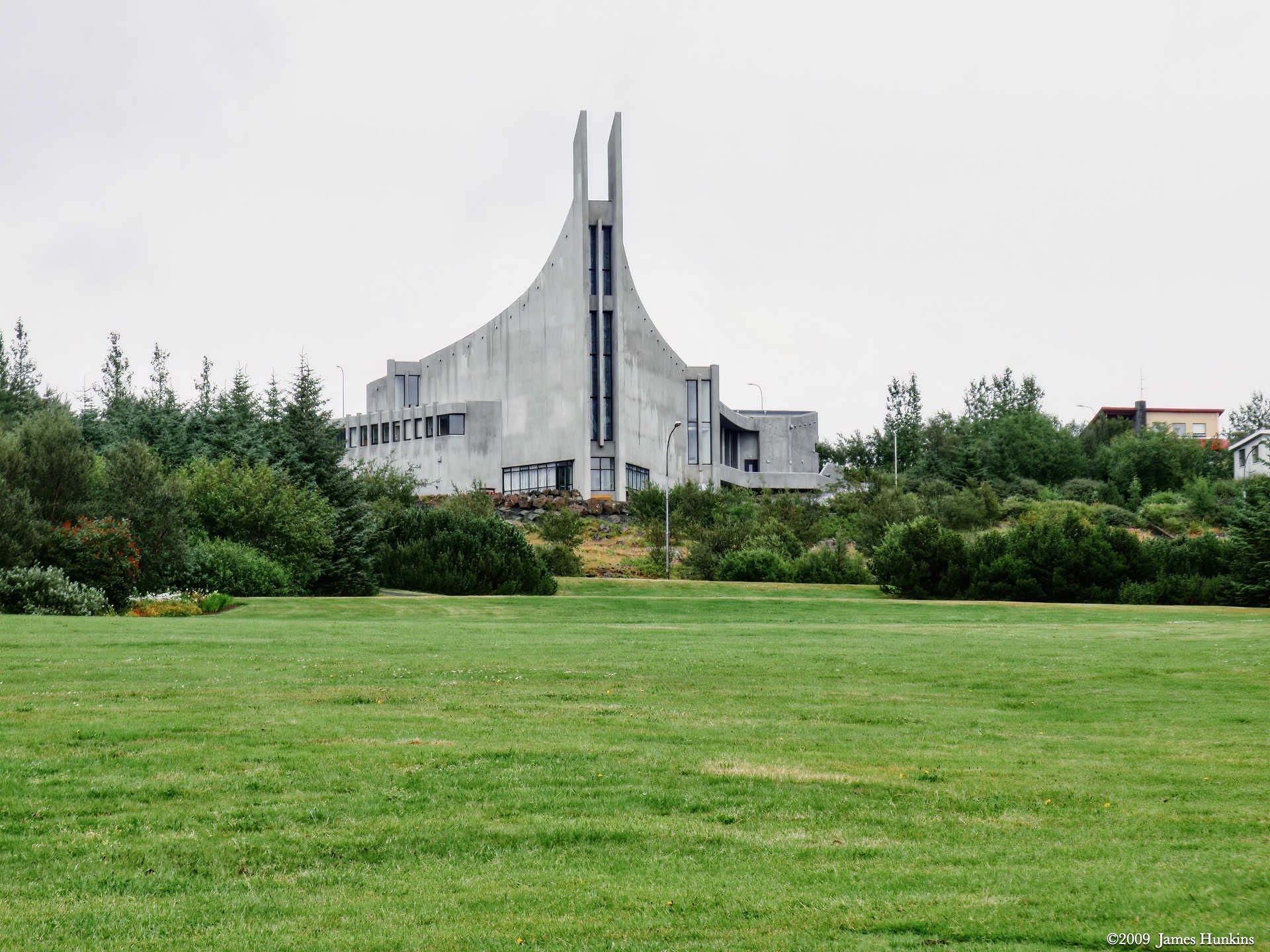
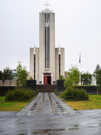 090809_0035NLaugarneskirkja - The Church of Laugarnes in Reykjavik
 -
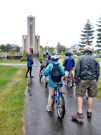 090809_0036NLaugarneskirkja - The Church of Laugarnes in Reykjavik
 -
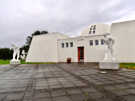 090809_0037NMuseum dedicated to Ásmundur Sveinsson
 -
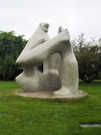 090809_0038NSculpture in sculpture garden - museum dedicated to Ásmundur Sveinsson
 -
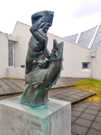 090809_0040NSculpture in sculpture garden - museum dedicated to Ásmundur Sveinsson
 -
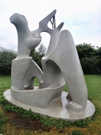 090809_0041NSculpture in sculpture garden - museum dedicated to Ásmundur Sveinsson
 -
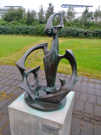 090809_0042NSculpture in sculpture garden - museum dedicated to Ásmundur Sveinsson
 -
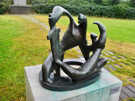 090809_0043NSculpture in sculpture garden - museum dedicated to Ásmundur Sveinsson
 -
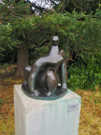 090809_0044NSculpture in sculpture garden - museum dedicated to Ásmundur Sveinsson
 -
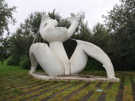 090809_0045NSculpture in sculpture garden - museum dedicated to Ásmundur Sveinsson
 -
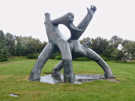 090809_0046NSculpture in sculpture garden - museum dedicated to Ásmundur Sveinsson
 -
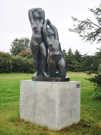 090809_0047NSculpture in sculpture garden - museum dedicated to Ásmundur Sveinsson
 -
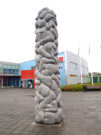 090809_0048NSculpture in front of a gym in Reykjavik
 -
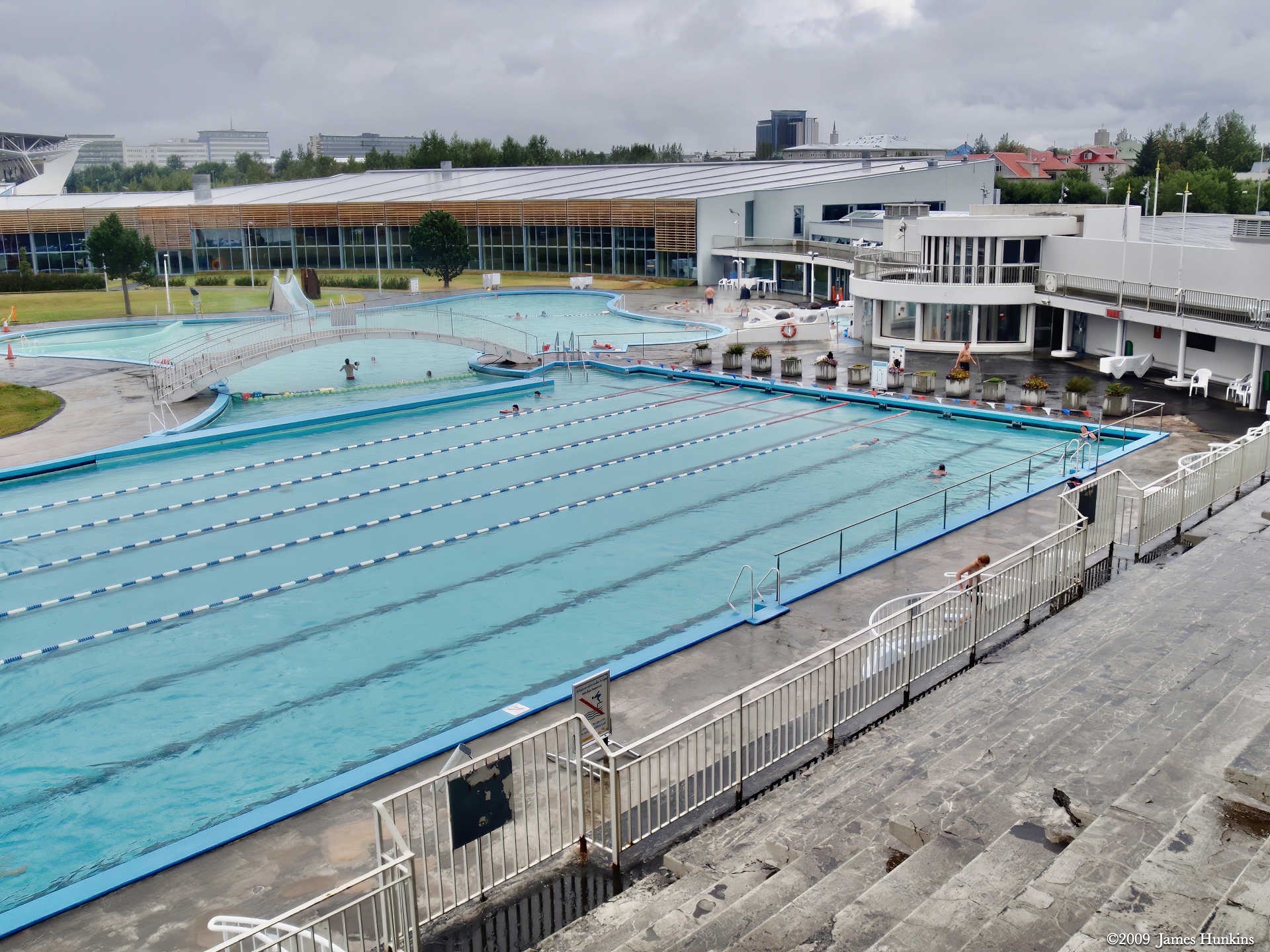
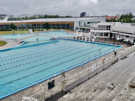 090809_0049NLaugardalslaug pool in Reykjavik
 -
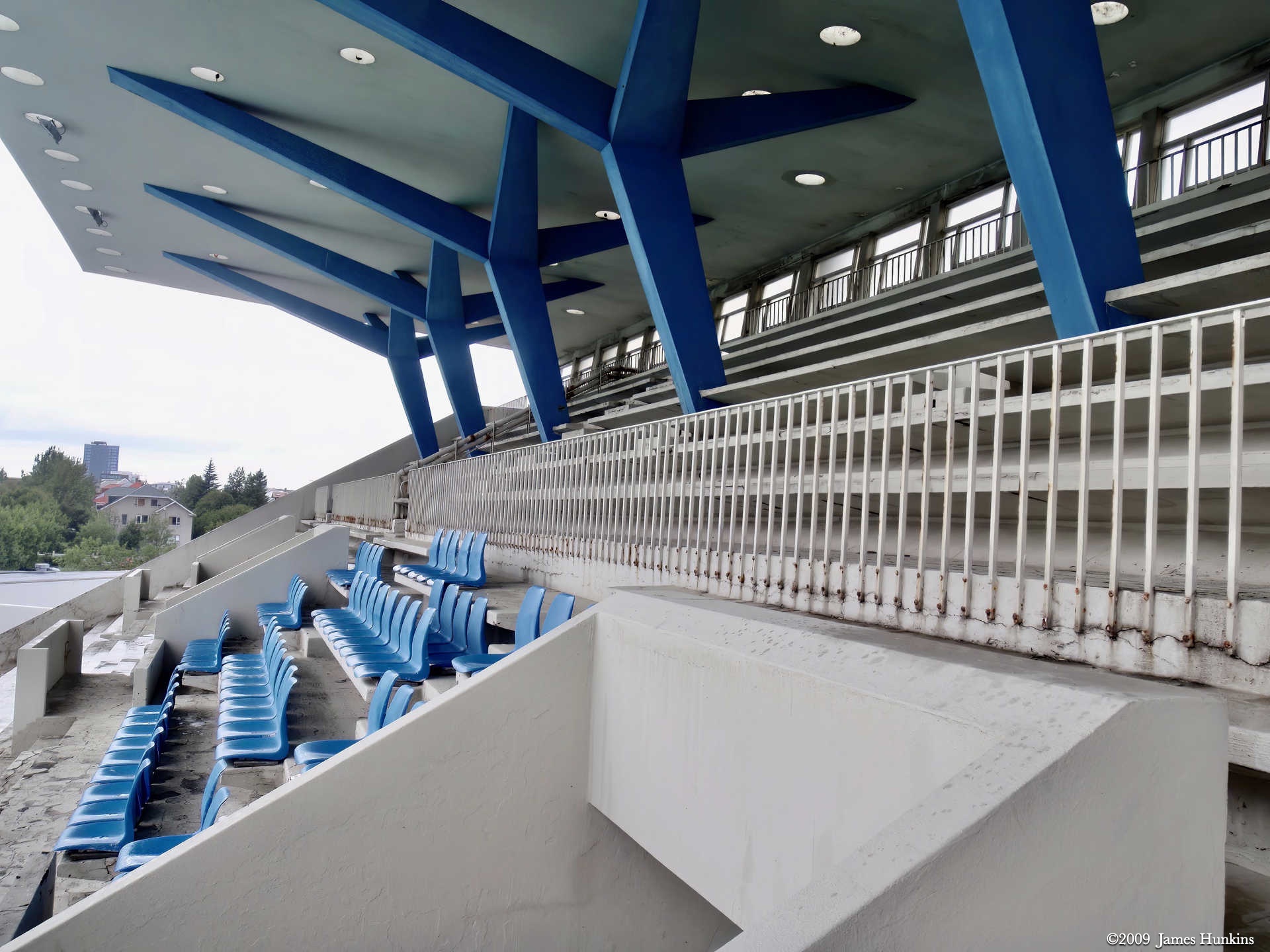
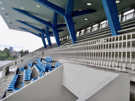 090809_0050NStands overlooking Laugardalslaug pool
 -
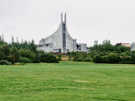 090809_0051NÁskirkja, Protestant Church In Reykjavík
 -
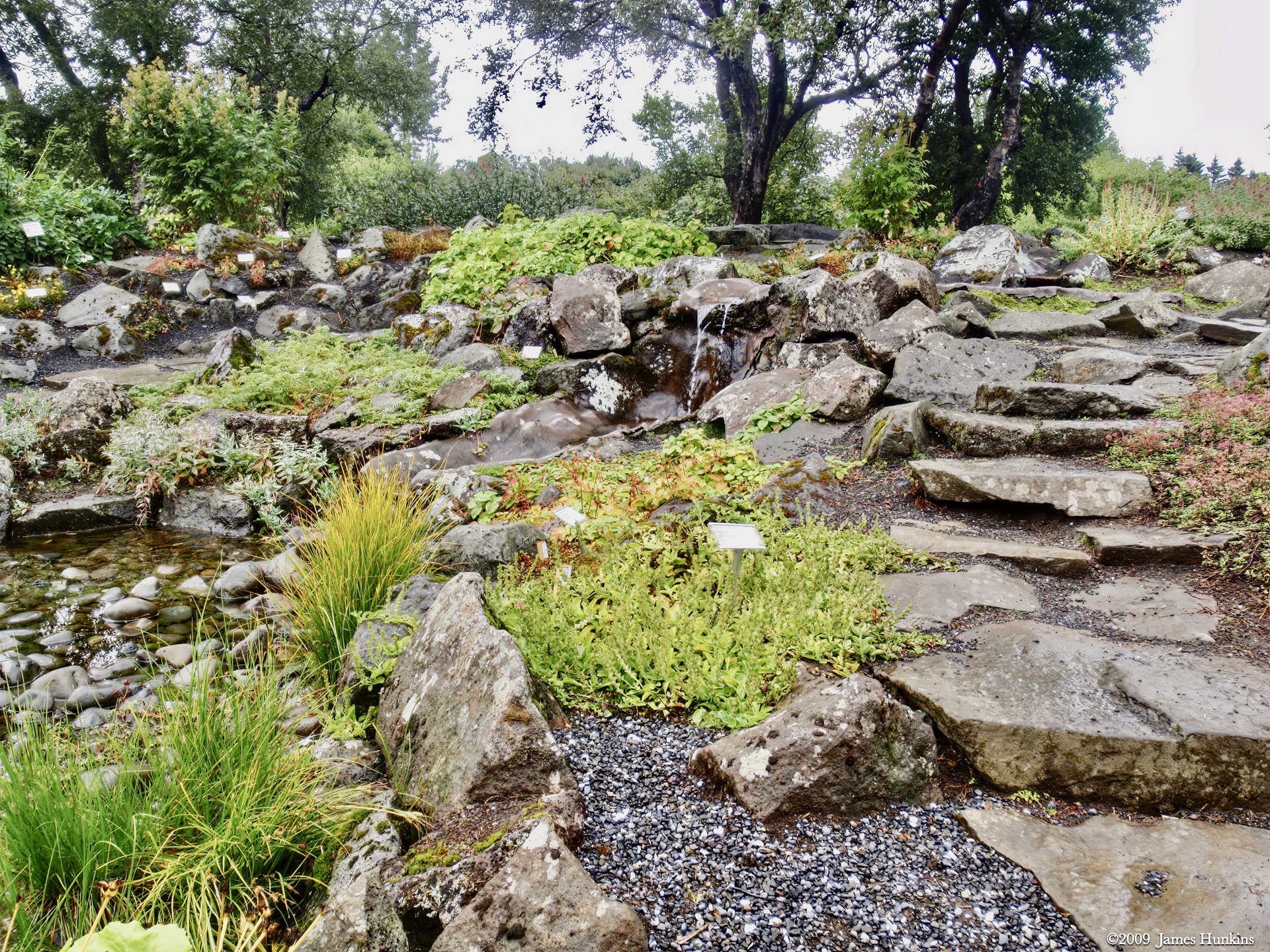
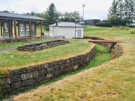 090809_0052NReykjavík Botanic Garden
 -
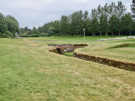 090809_0053NReykjavík Botanic Garden
 -
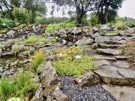 090809_0054NReykjavík Botanic Garden
 -
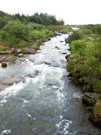 090809_0057NStream near Reykjavík
 -
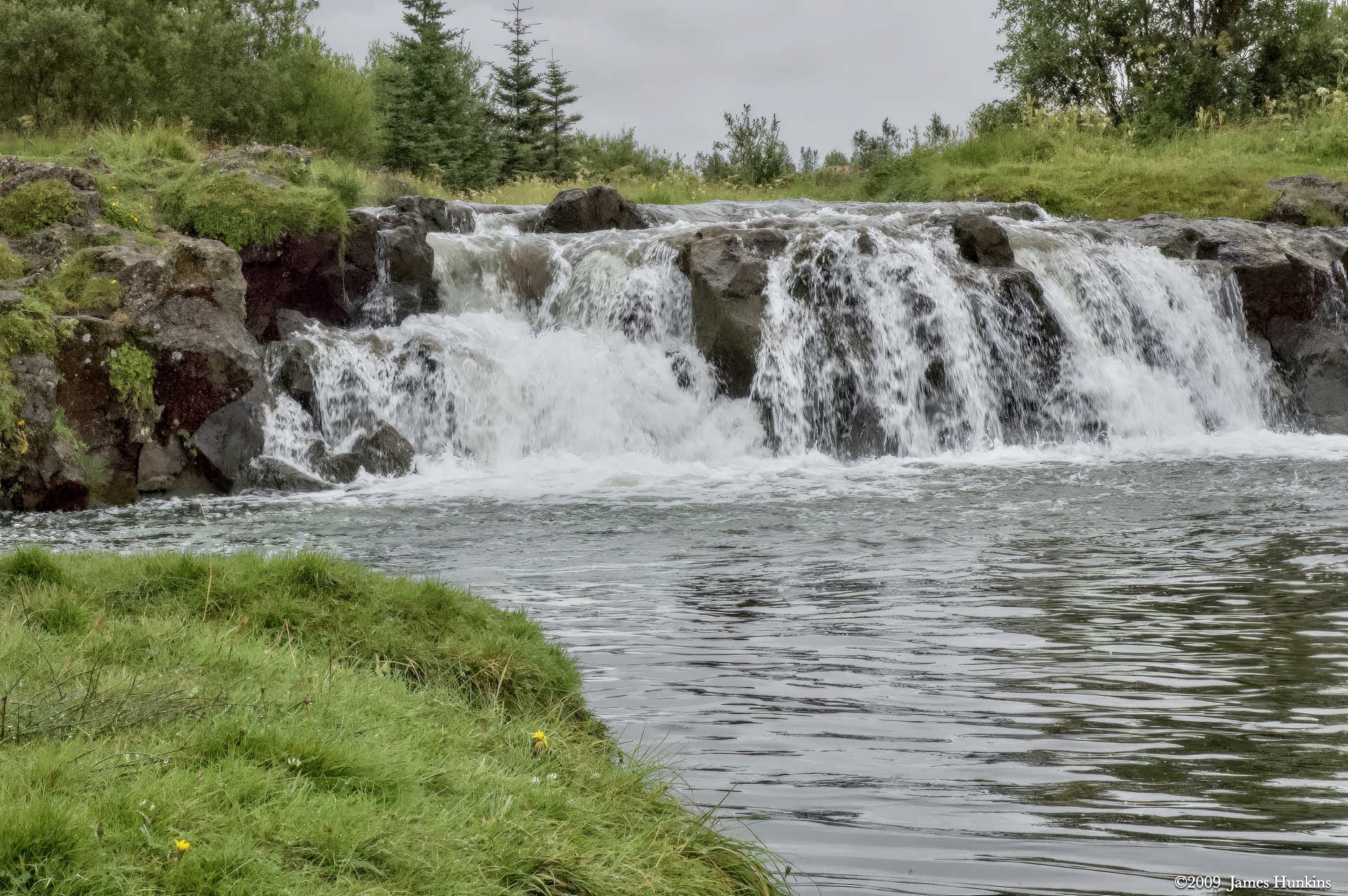
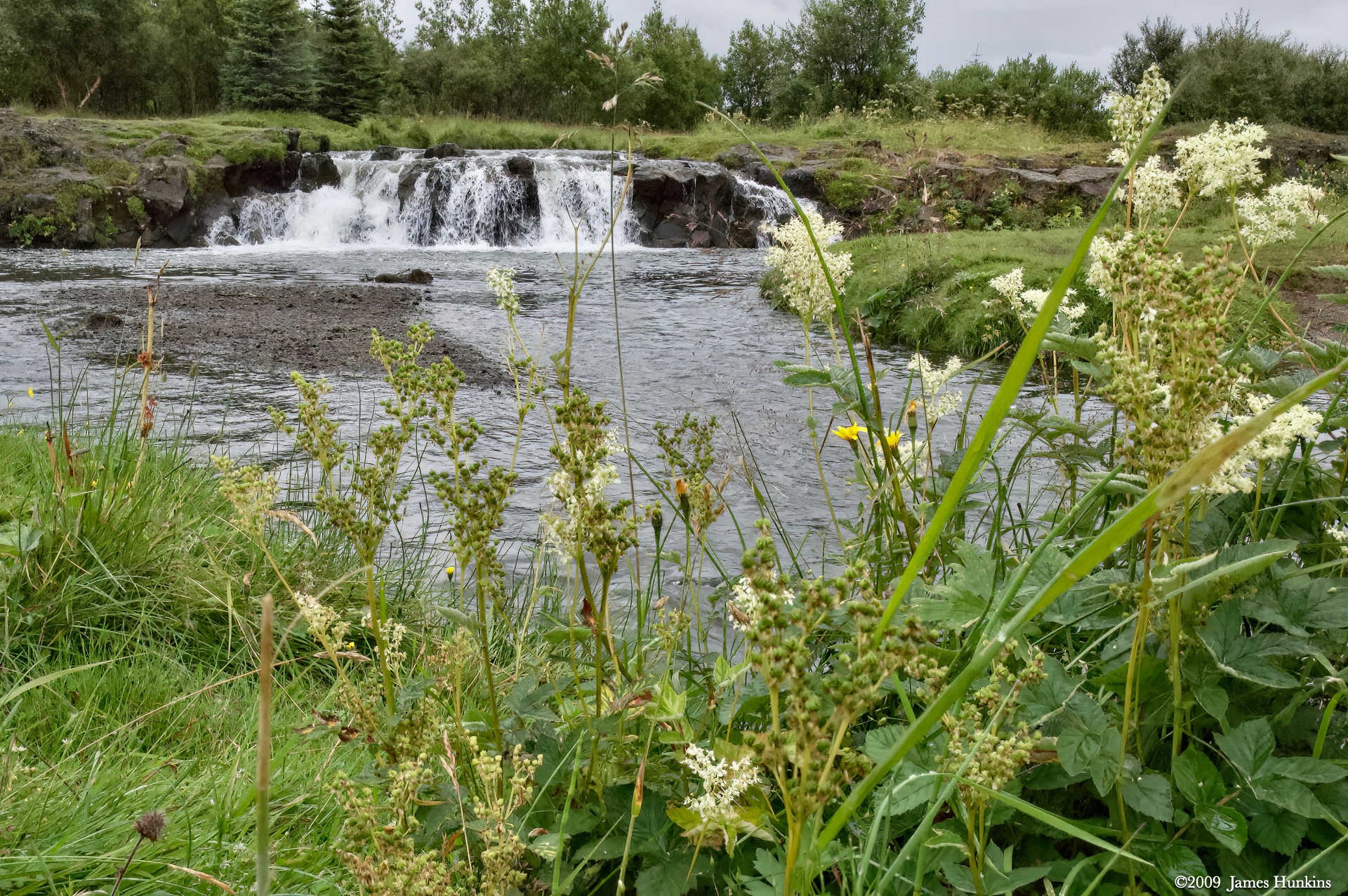
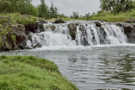 090809_0060NSmall waterfall near Reykjavík
 -
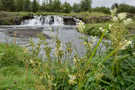 090809_0061NSmall waterfall near Reykjavík
 -
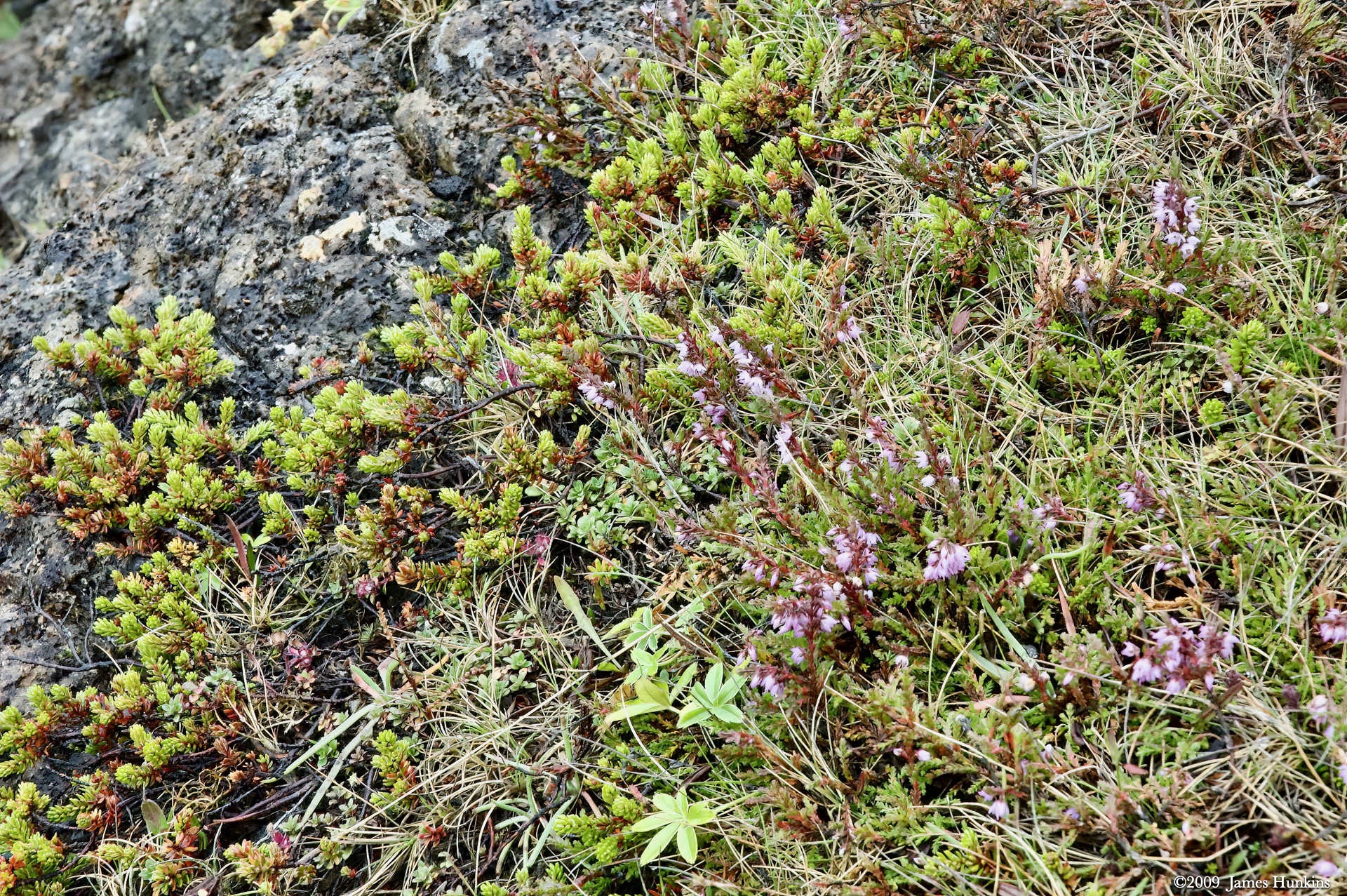
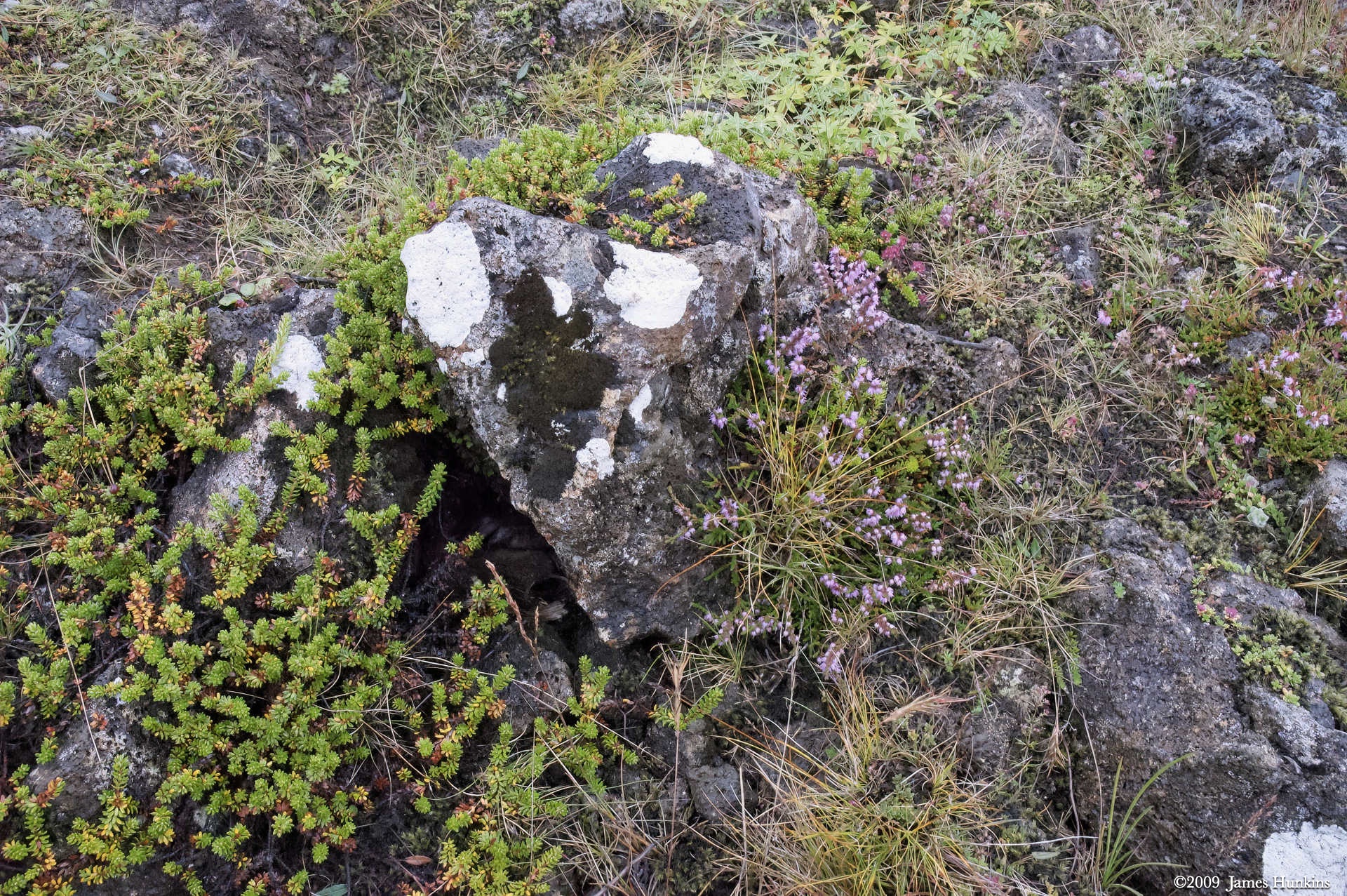
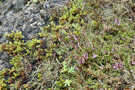 090809_0067NSmall wildflowers on rocky surface
 -
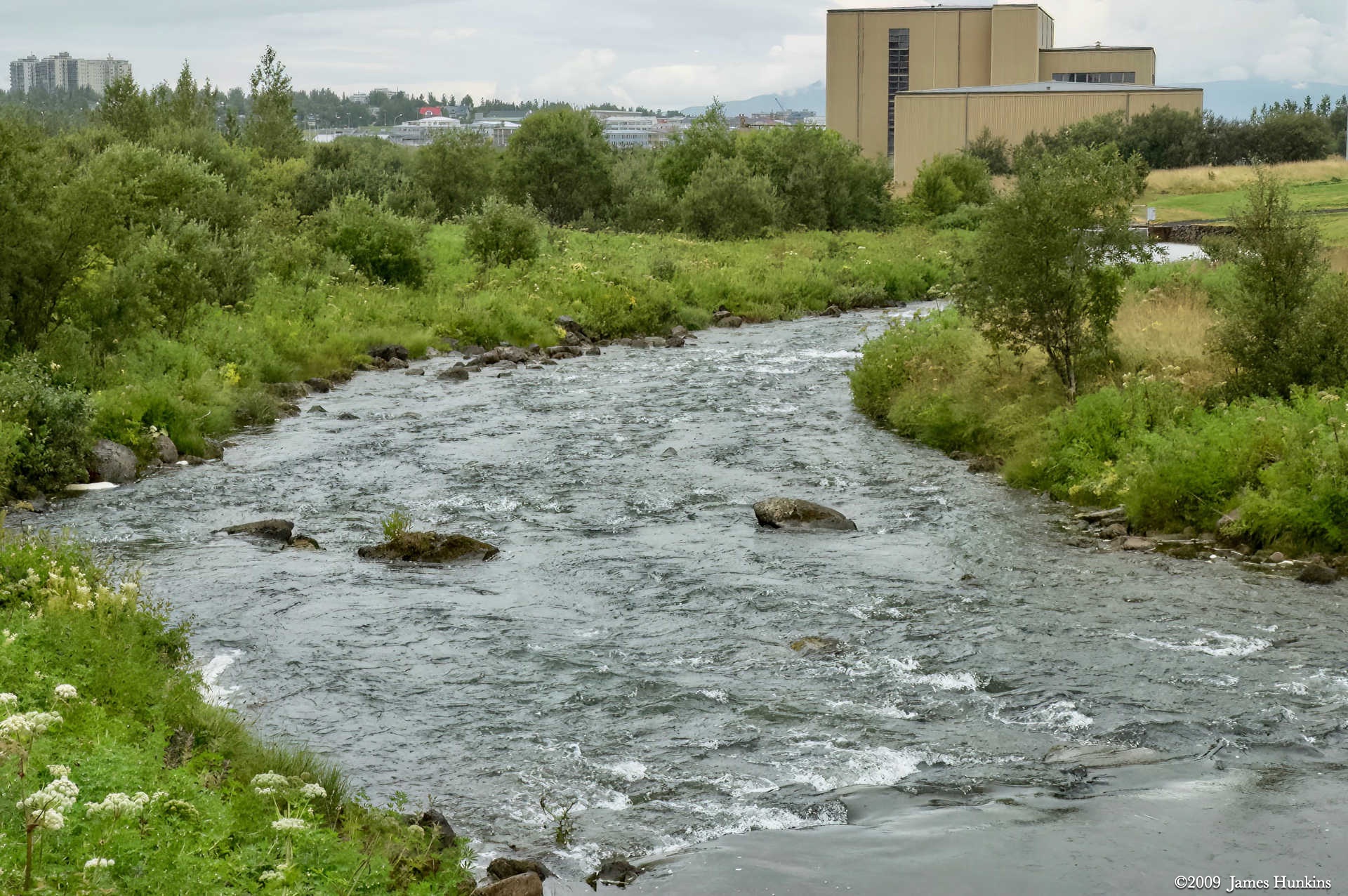
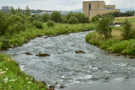 090809_0068NStream with Reykjavík in the background
 -
 090809_0071NSmall wildflowers on rocky surface
 -
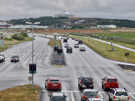 090809_0074NLooking toward large hot water tank in Reykjavik
 -
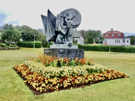 090809_0075NÚr Álögum Sculpture by Einar Jónsson
 -
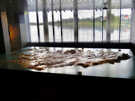 090809_0076N3D model of Iceland in Reykjavik’s City Hall
 -
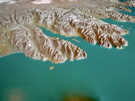 090809_0077N3D model of Iceland in Reykjavik’s City Hall
 -
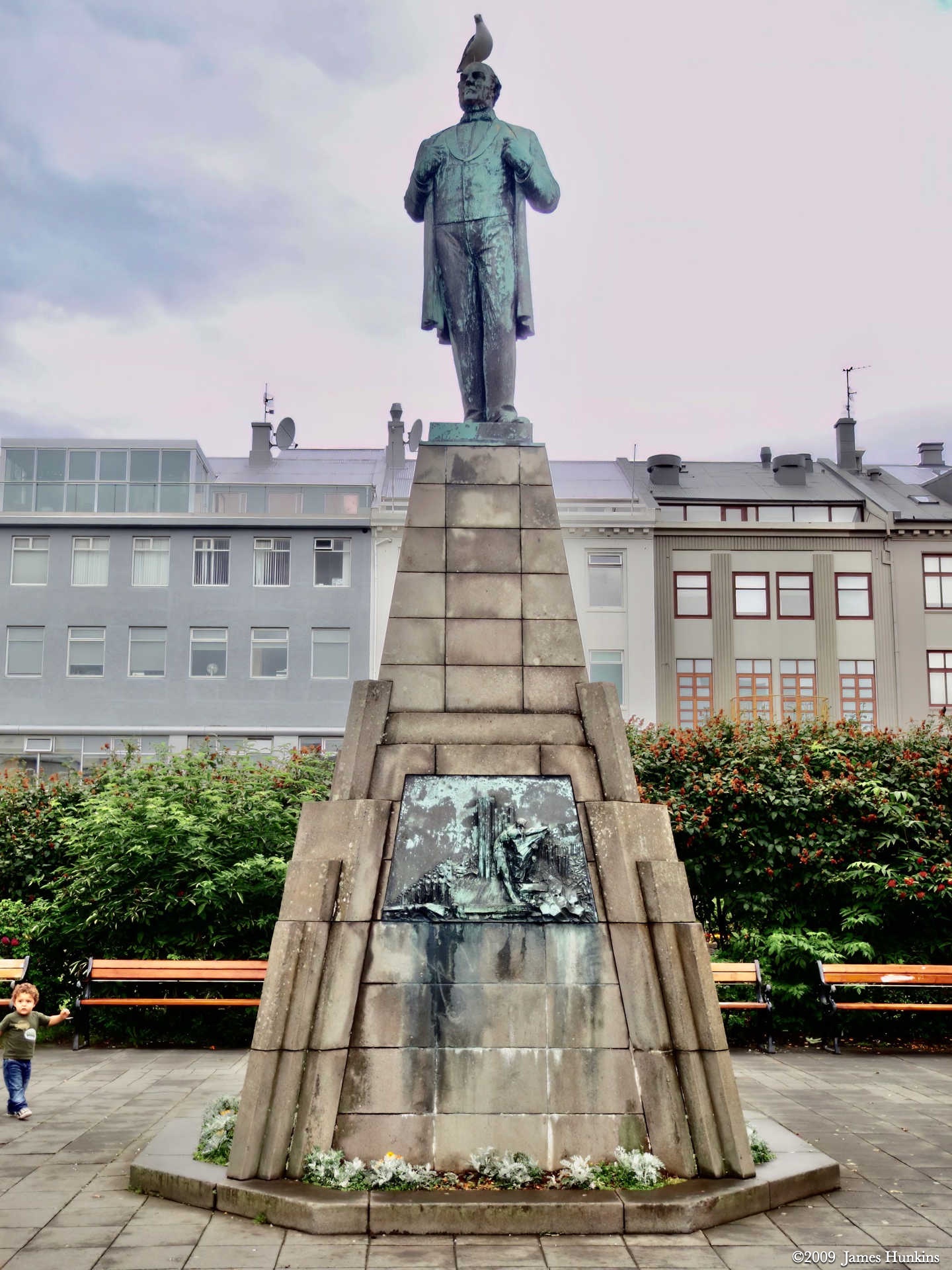
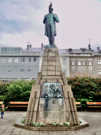 090809_0080NAusturvöllur Square with statue of Jon Sigurösson, a leader of Iceland's independence movement
 -
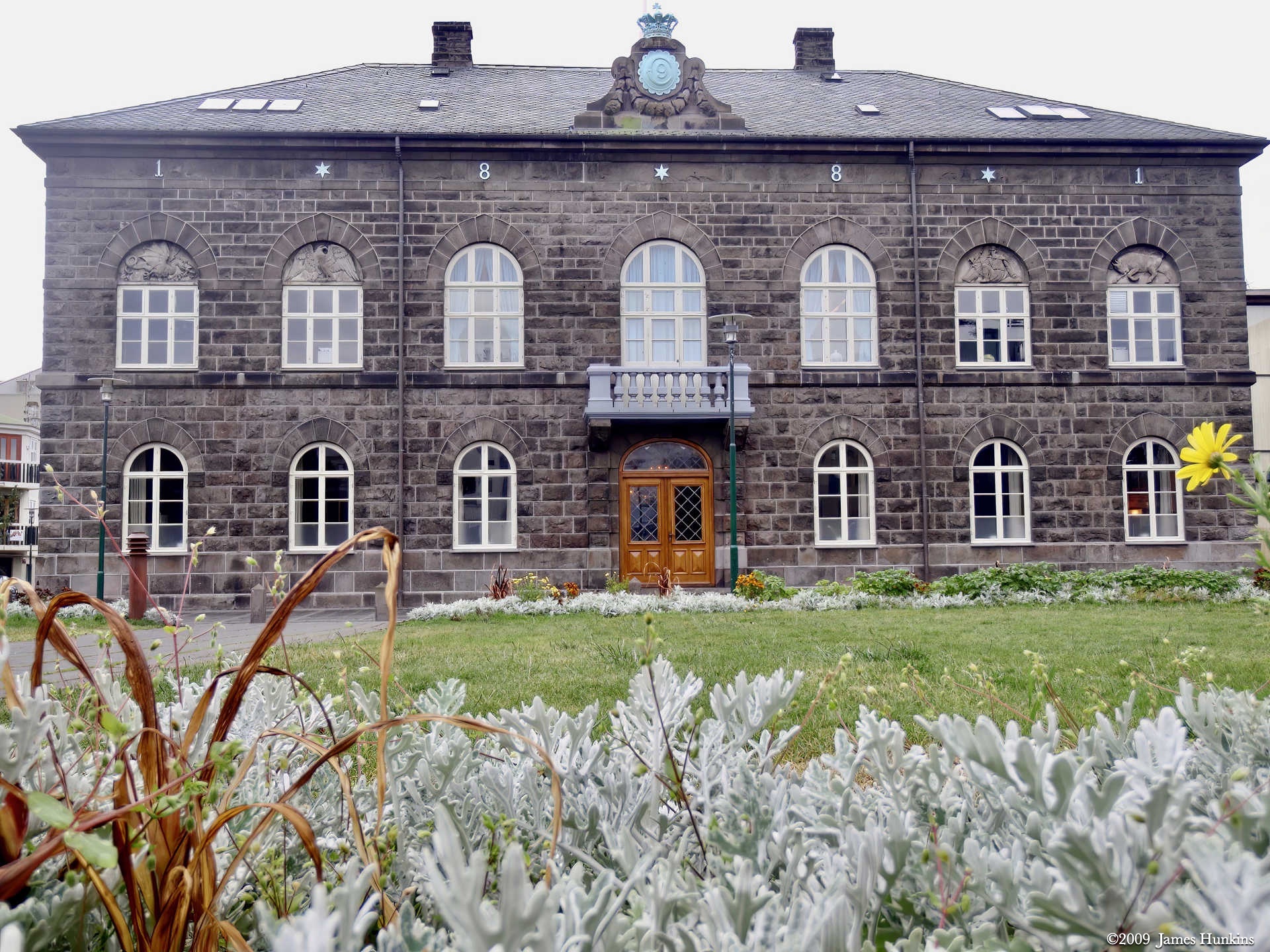
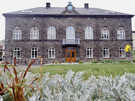 090809_0081NParliament Building in Reykjavik
 -
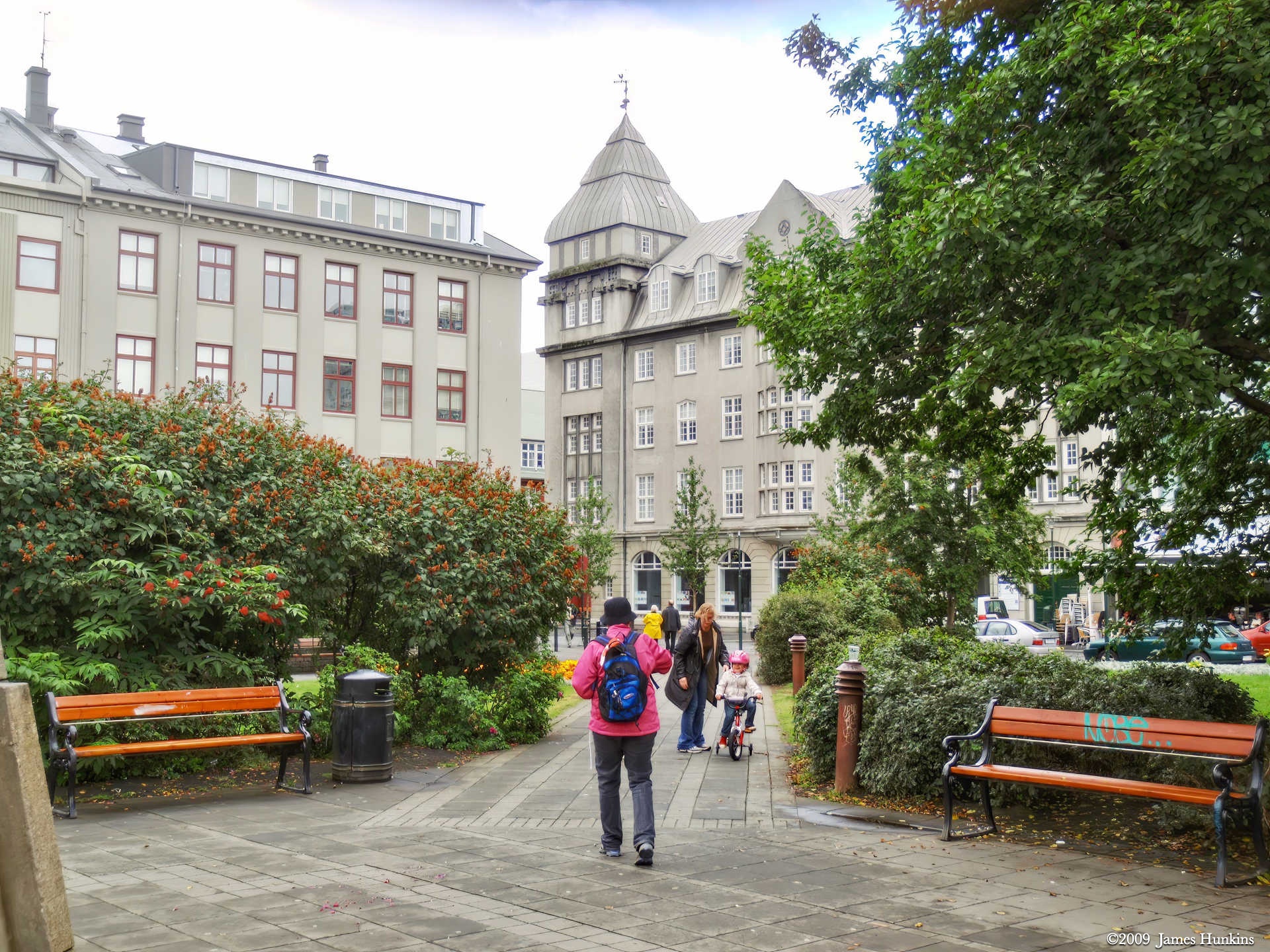
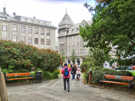 090809_0082NParkway in Reykjavik