Alaska 2023
STOPOVER IN JUNEAU
DAY 5 : TUESDAY SEPT 19, 2023
I had not mentioned this before but a few days previously our ship ran into electrical problems. While these ships always have at least one backup generator, it turns out that there was a dead short that killed the power on many of the upper decks. We were lucky and still had power on our deck but there were many passengers without power for a few days.
This was unfortunate but things do happen. Everyone was a very good sport about it and the crew did its best to keep everyone in good spirits. Luckily the kitchen and lounge were all good so people had nice places to hang out while the crew worked to isolate the issue.
It turns out they needed to have a part flown into Juneau which was the closest possible location. So we had an extra stopover in Juneau for this day while they installed the part and ran all the system checks. All was good.
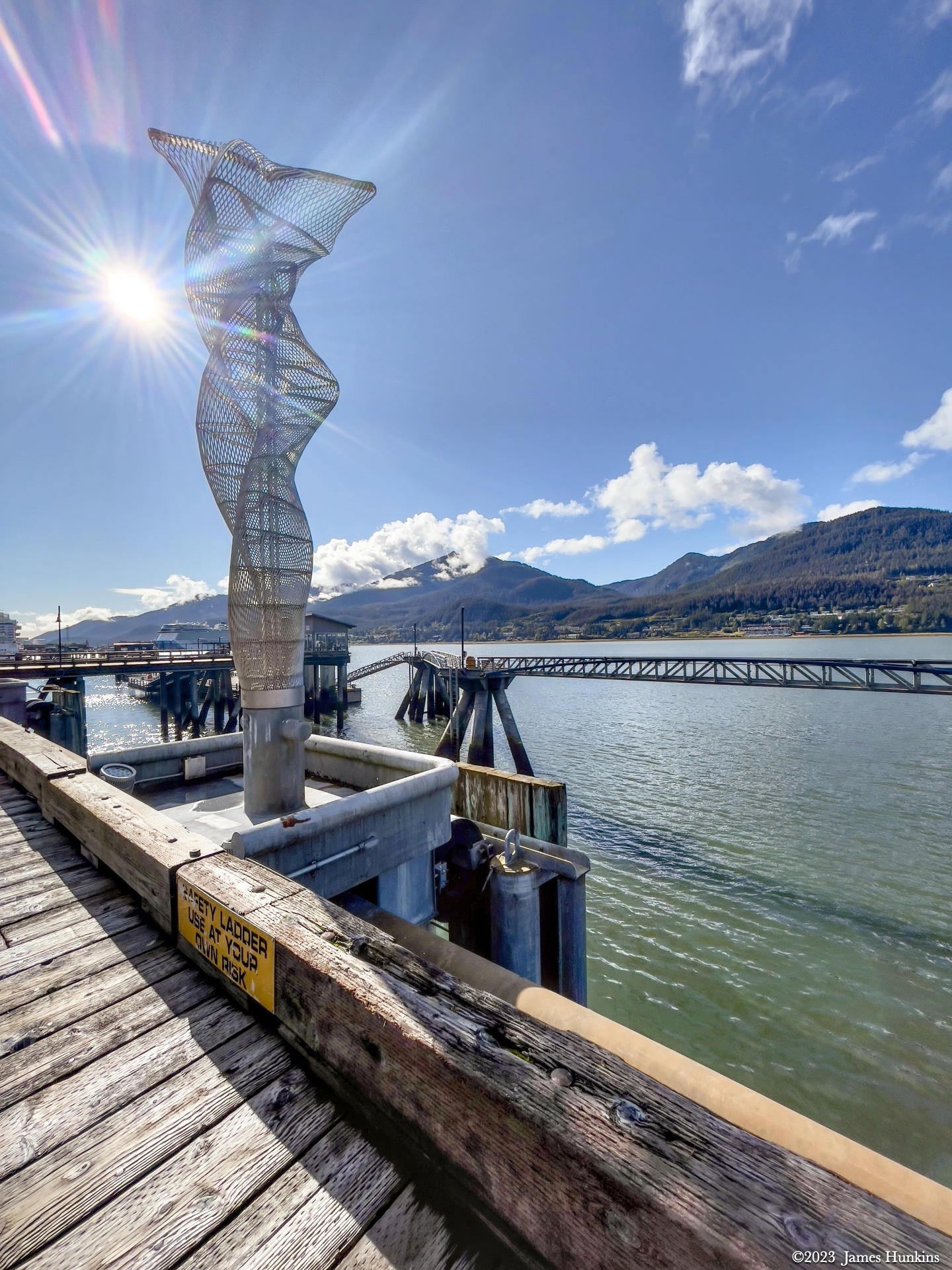
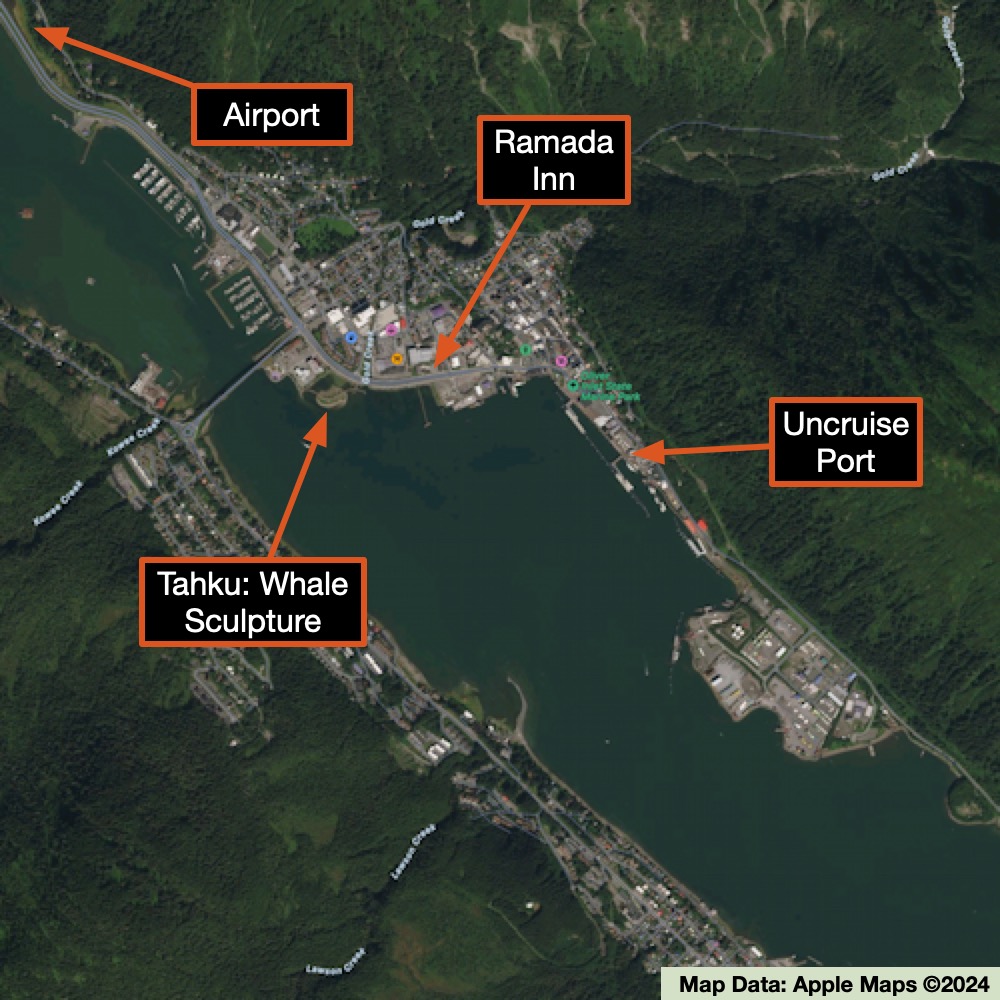
While in the Juneau harbor, we experienced one of the very rare sunny days - it was absolutely beautiful. There were some hikes people could take and the Uncruise also made their visitor’s room available with snacks, power, and Wifi (just what everyone wanted - to be back on the internet -yuck. One of the nice things about Alaska is that there is no cellular in most of the state).
My two friends and myself took the day to do some shopping, exploring, and eating out.
To make up for the change of itinerary, our captain let us know that we would have one or two additional stops as we got back to our journey, including one that was rarely visited due to time constraints. And which was one of the crew’s favorites.
VIEWING HELP
To close this window, click the X in the upper right hand corner. Or click anywhere outside of this window's area.
Photos from each day are shown in thumbnail (small) form. Panoramas are either wide or tall images, while normal photos are small rectangles. All photos shown in the PHOTO SHOWCASE section can be enlarged for better viewing. Photos will enlarge to fit your browser window width. Therefore, to view them at larger sizes simply make your browser window wider.
If there is any issue or the need to inquire/comment about an image, please refer to the Image ID label (see below) of the specific image along with the trip name found at the top of the browser window.
Video Clips
Depending on the browser, some of the controls may not always be supported.
Most videos will start playing automatically. Sound is automatically off even if included with a video. See D, E below for sound control.
A few small videos are set to loop endlessly, while most just play to the end.
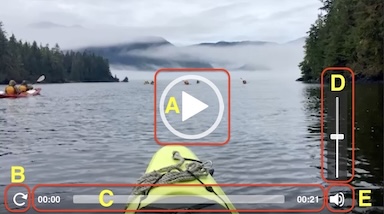
- A: To start or stop a video, click in this area (even if the symbol is not visible)
- B: If a browser shows this symbol, clicking on it will restart the video from the beginning
- C: Progress bar - will display total video time on the right.
- D, E: This seems to have the most variants between browsers. If the video description says 'w/ sound’, you can adjust the volume with this control
If neither is visible, move the cursor to the E area and either E and/or D will be visible
If E is visible but not D, click on E
Once D is visible, slide the bar up or down to adjust the volumn
Panoramas
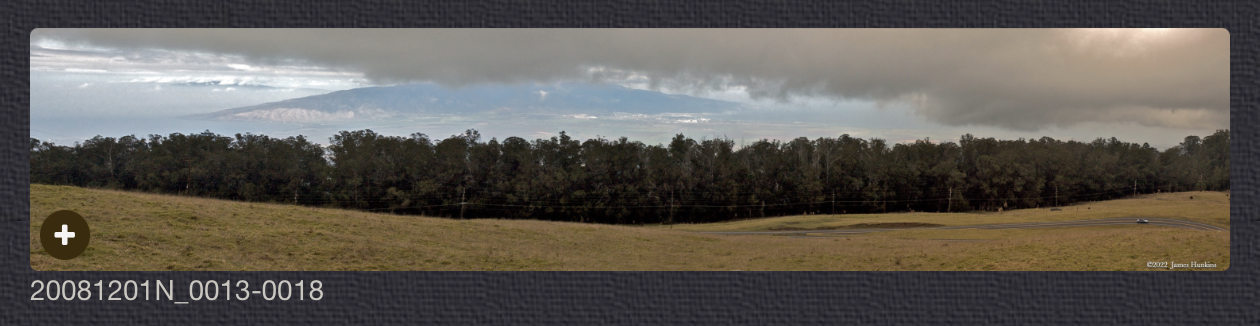
Clicking anywhere on a panorama thumbnail will cause the image to expand to fill the browser width. Clicking again anywhere in the browser window or scrolling the browser window will cause the expanded image to shrink back to its smaller thumbnail size.
The Image ID and description is found just below the thumbnail image on the left side.
Individual Photographs
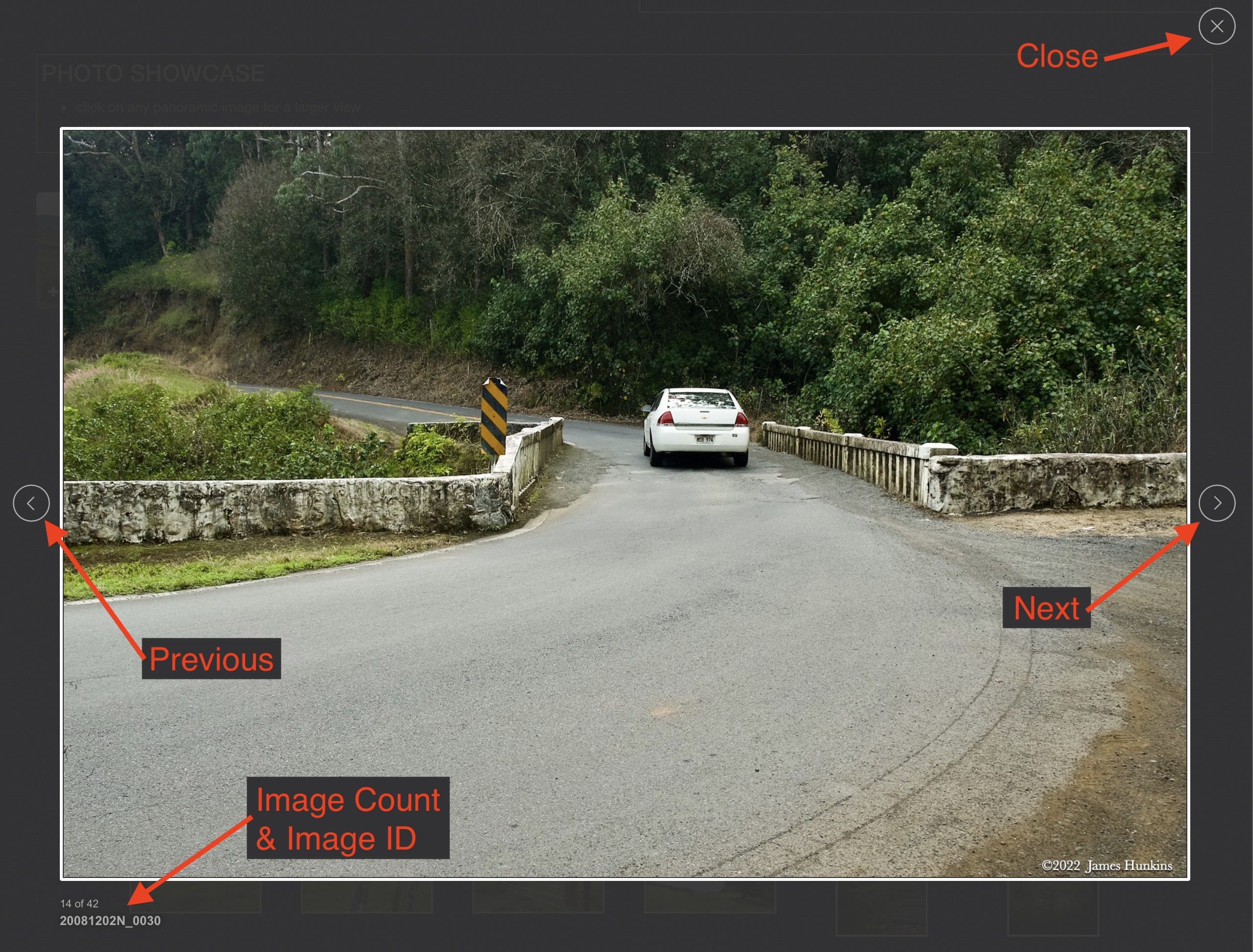
If you click on any photo thumbnail, it will open a larger viewer which can be used to walk through all of the standard photos on the page. Once open, to go forward click on the > on the right side of the enlarged image. To scan backwards, click on the < on the left side. To close the larger images either click on the X in the upper right hand corner of the browser window or anywhere outside of the enlarged image.
The Image ID label can be found by hovering a cursor over the thumbnail image (may not be available on some tablets/phones) or, once enlarged, from the lower left hand side just under the image.
Additionally, in the same area as the Image ID (or the upper left corner for newer/updated sites) a count showing the current image number versus the total number of images available for viewing.

For newer or updated sites (look for the orange checkbox in the header of a sites main page), additional buttons have been added when viewing a full size image. From left to right, the buttons are:
- Email: will open an email with information and a link to the current image
- WhatsApp: if WhatsApp is on your system, will open a browser window to open WhatsApp and create a message with information and a link to the current image
- FaceBook: Will open a browser window to open Facebook and create a message with information and a link to the current image
- full screen: will take over the entire display versus just the browser in most systems; ESC returns to the brower only mode
- magnify: enlarges the image within the browser or full screen; if the image is larger than can be displayed it can be scrolled
- exit: will close the large image viewer returning to the thumbnails




Links:
PHOTO SHOWCASE
- click on any thumbnail image for a larger view/slideshow
-
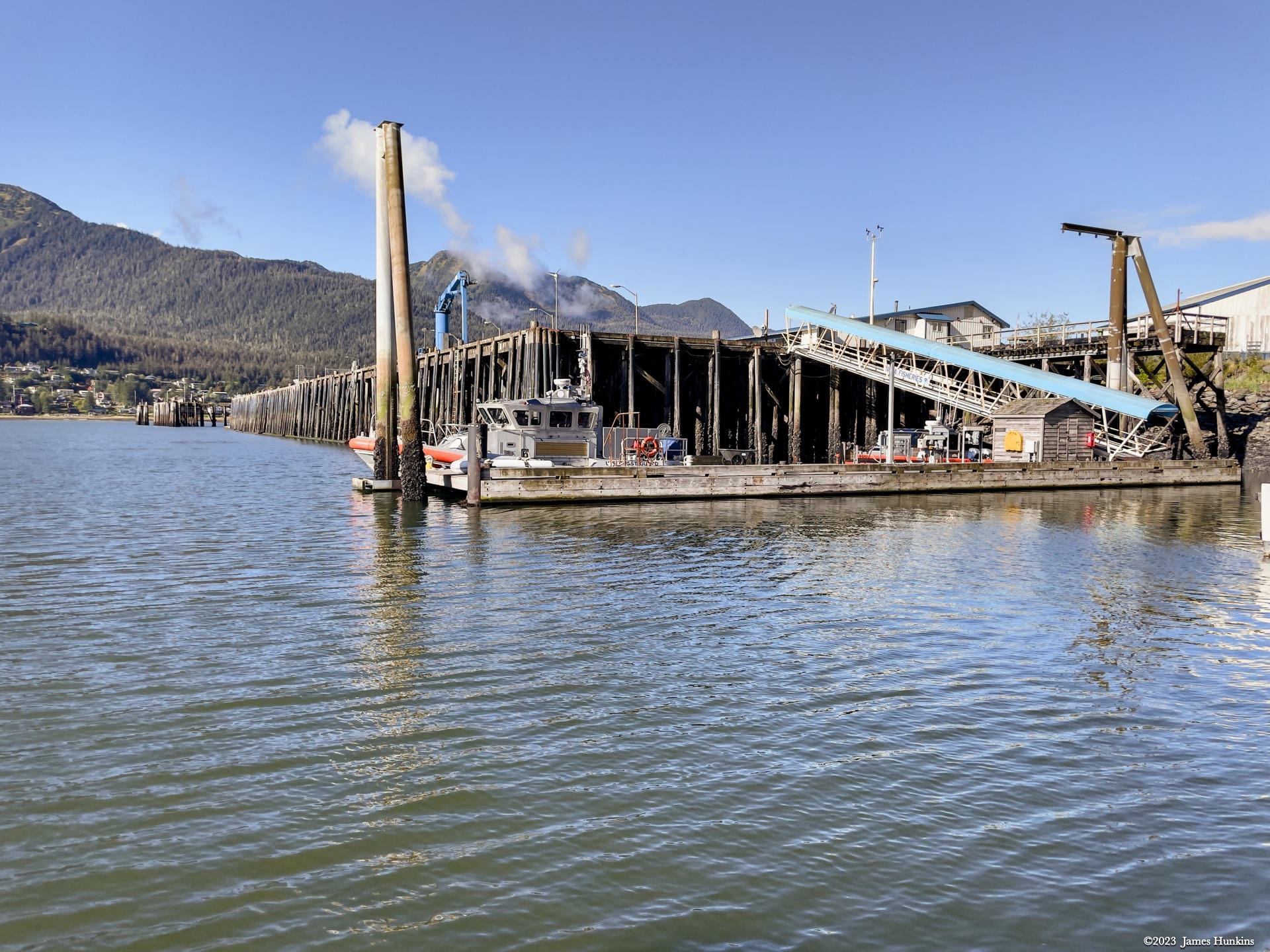
 2309190003PNorthern section of Juneau port
 -
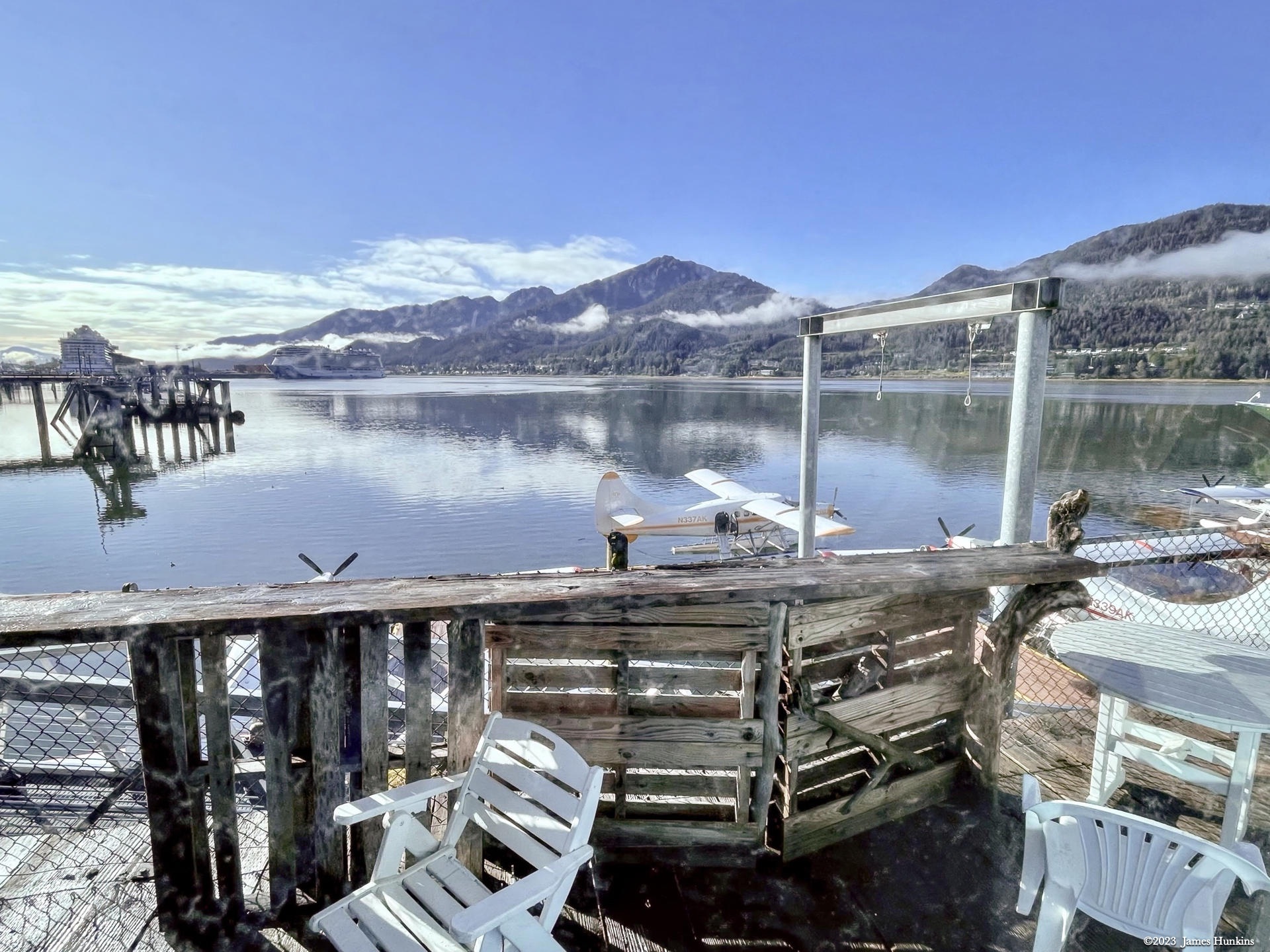
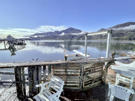 2309190001PBeautiful view of the Juneau harbour - for a rare sunny day
 -
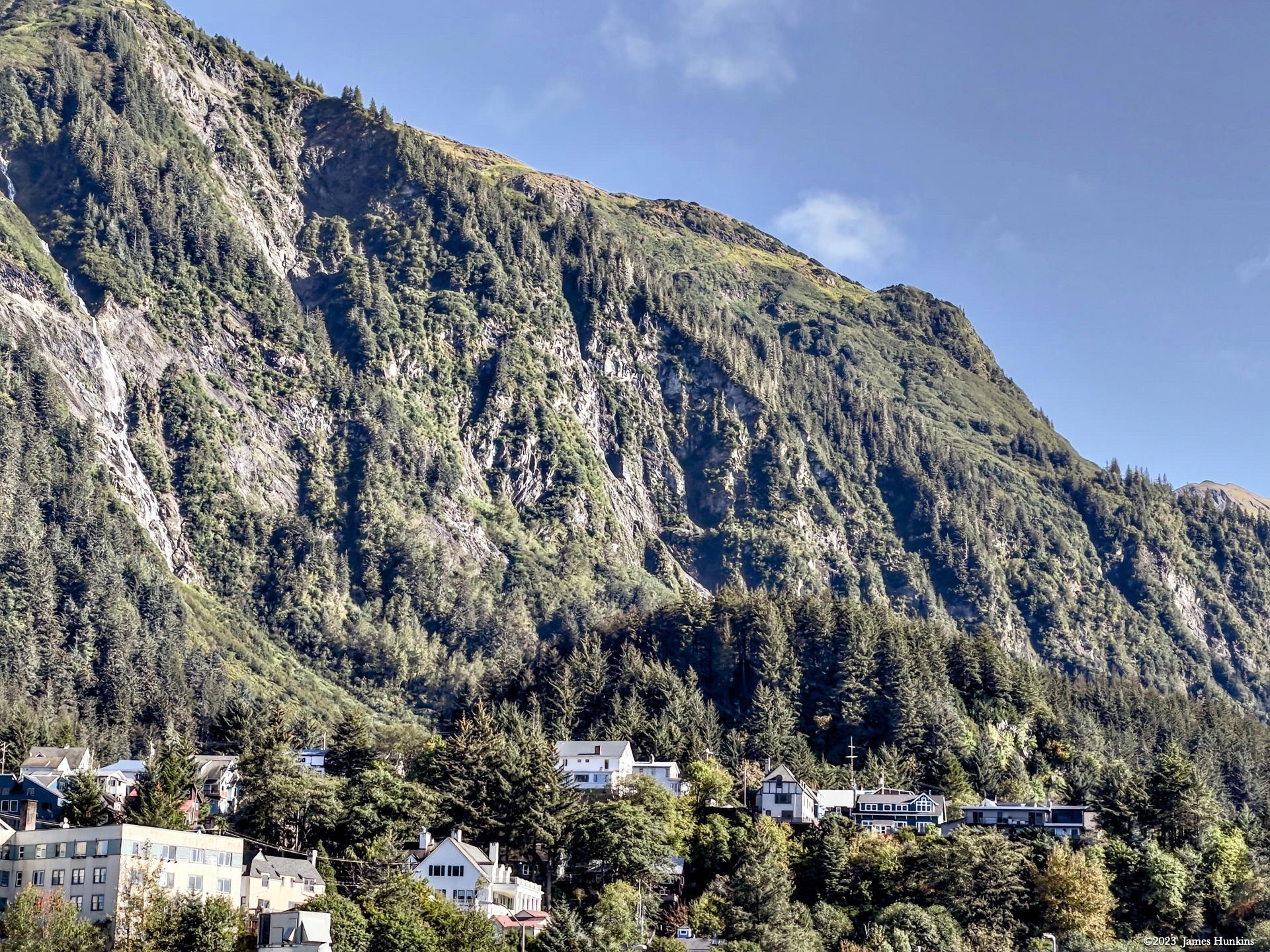
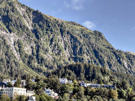 2309190002PCliffs overlooks homes above the Juneau port
 -
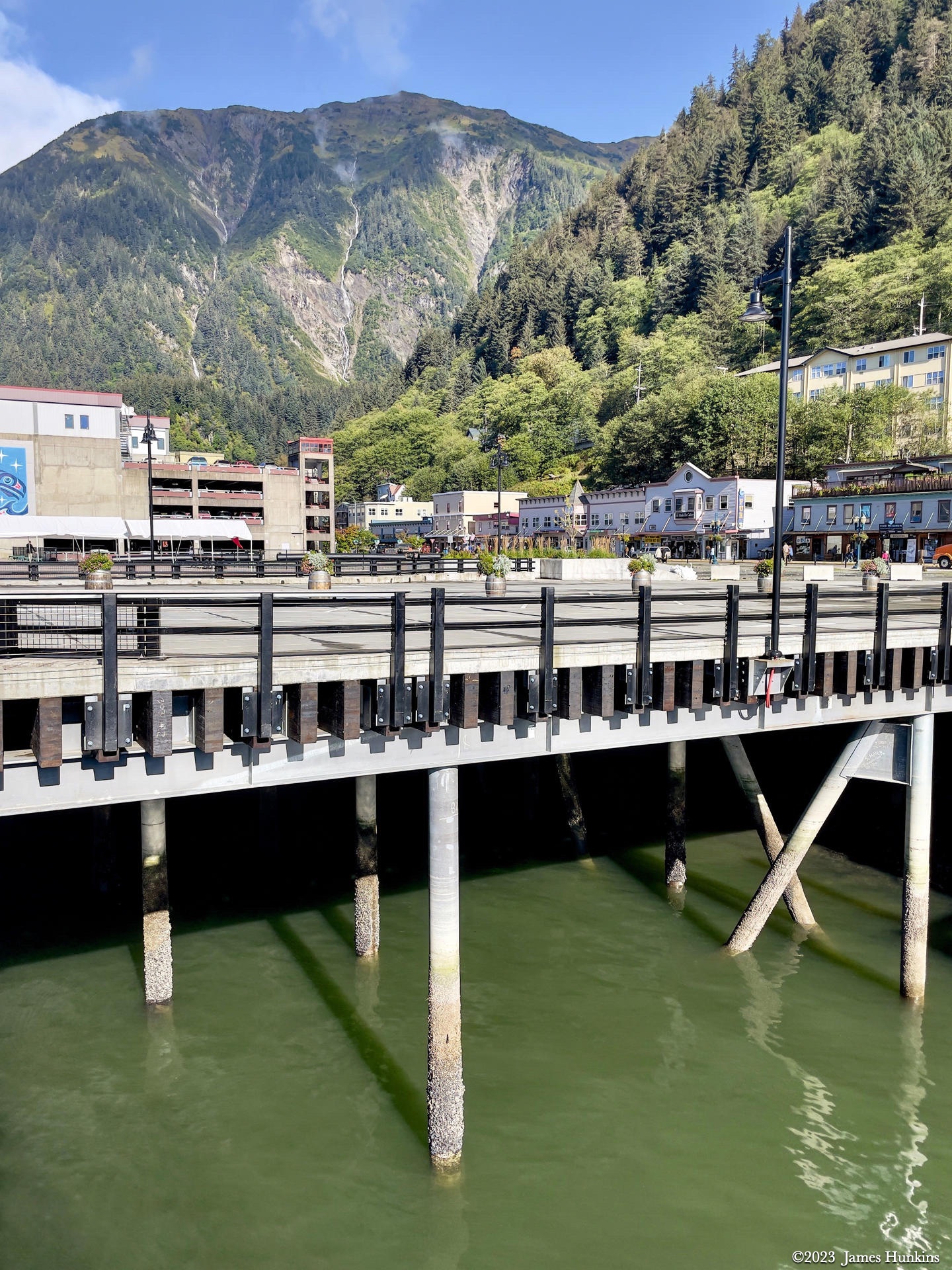
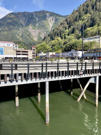 2309190004POpen space in downtown Juneau extends out over the water
 -
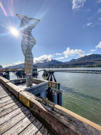 2309190005PA unique sculpture overlooking a track to carry cargo in the harbour
 -
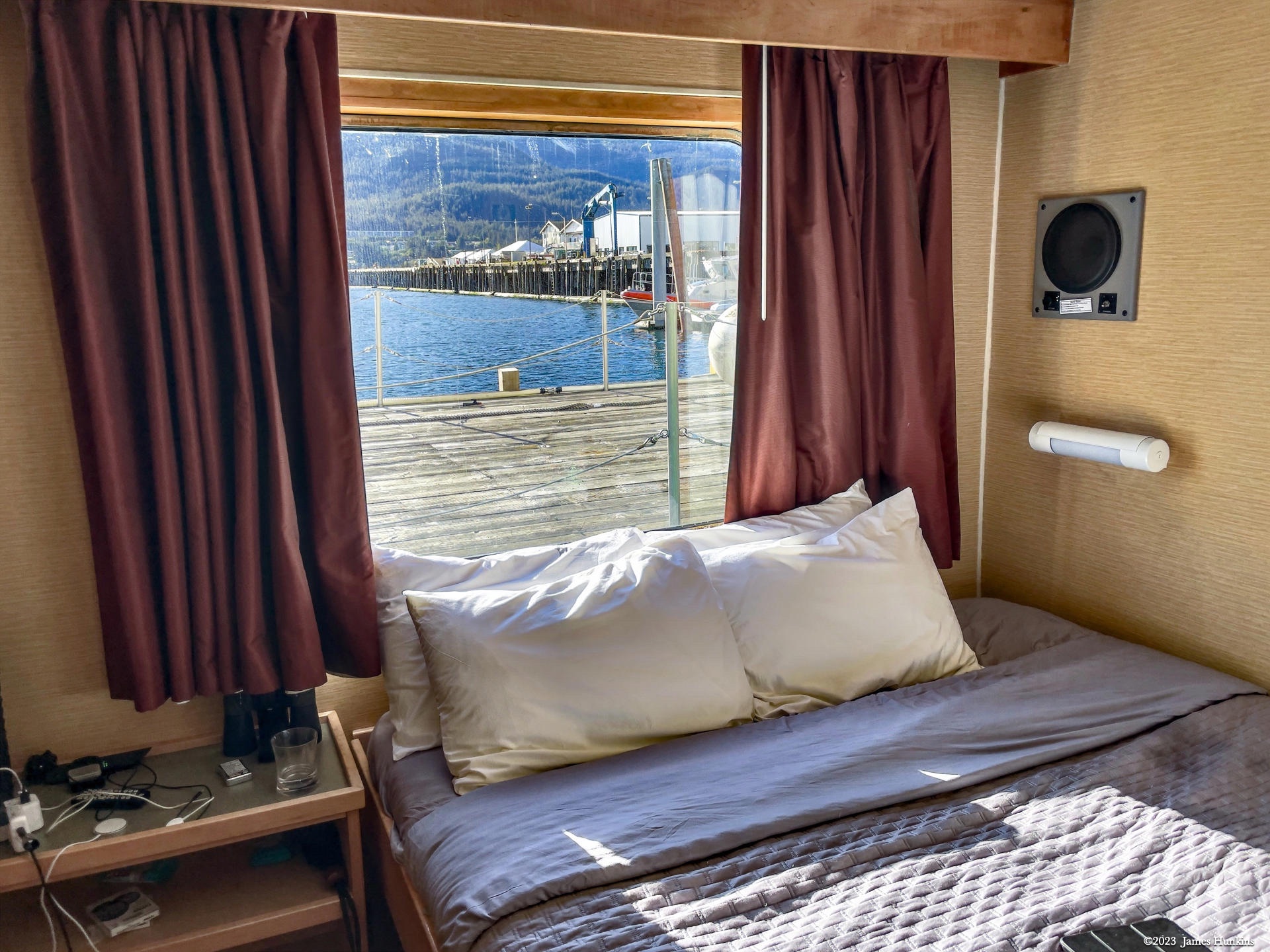
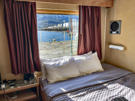 2309190006PA view from my cabin while in the Juneau port (electronics and binoculars always nearby)