Alaska 2017
Ketchikan: DEPARTURE
DAY 8 : SATURDAY SEPT 30, 2017
As we pulled into Ketchikan the next morning, we finished off with a pleasant breakfast on board. We had a while before my travel companions and I had to catch our flights home, so we explored town a bit. Being at the end of the season, much was already closed as there would be very few ships to still bring in visitors until next spring. Regardless, it was a wonderful small town and reminded me of how fishing villages are often depicted in the movies. It would be a nice place to stay for an extra day at the start or end of a trip (UnCruise trips often can start at either end of the itinerary, so you can pick your starting point).
Unfortunately, we had not planned to stay and didn’t have much time, so I didn’t capture any pictures, leaving me to depend only on my own memory.
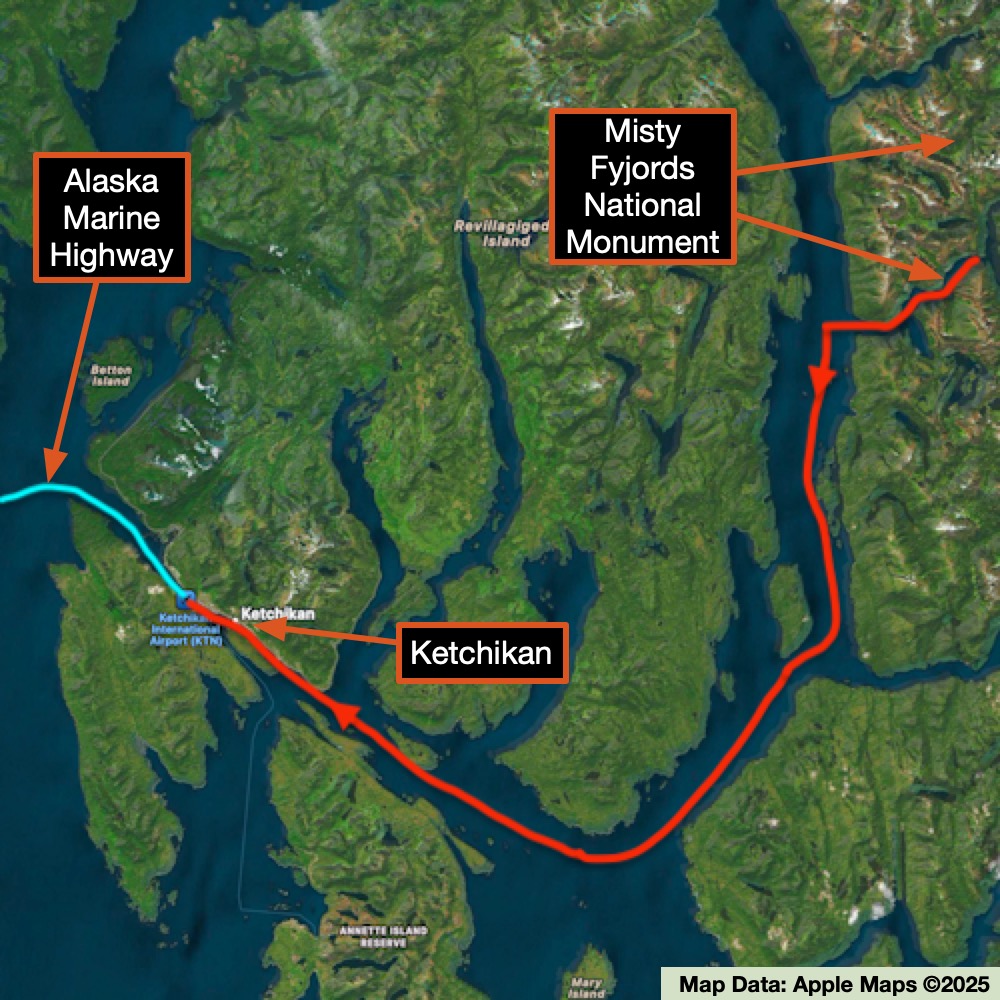
The airport, while being designated as international, was a small single-runway affair. To get to it, you had to take a short ferry ride across the Tongass Narrows. Such a fitting end to our adventure to the Alaskan fjords and glaciers!
VIEWING HELP
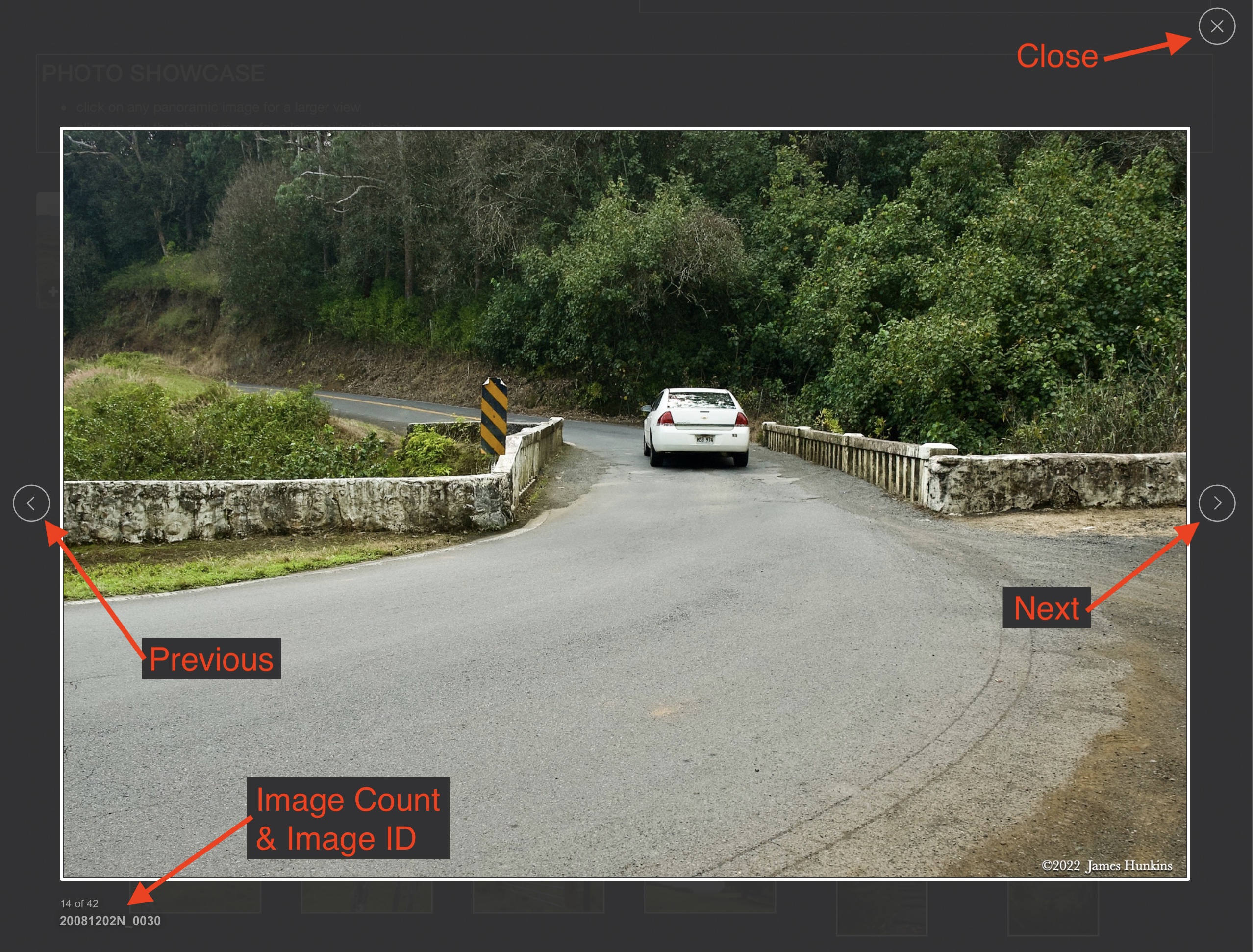
To close this window, click the X in the upper right hand corner. Or click anywhere outside of this window's area.
Photos from each day are shown in thumbnail (small) form. Panoramas are either wide or tall images, while normal photos are small rectangles. All photos shown in the PHOTO SHOWCASE section can be enlarged for better viewing. Photos will enlarge to fit your browser window width. Therefore, to view them at larger sizes simply make your browser window wider.
If there is any issue or the need to inquire/comment about an image, please refer to the Image ID label (see below) of the specific image along with the trip name found at the top of the browser window.
Video Clips
Depending on the browser, some of the controls may not always be supported.
Most videos will start playing automatically. Sound is automatically off even if included with a video. See D, E below for sound control.
A few small videos are set to loop endlessly, while most just play to the end.
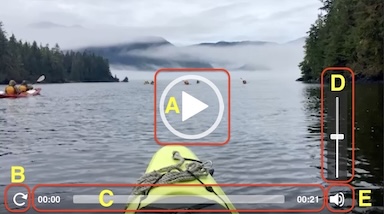
- A: To start or stop a video, click in this area (even if the symbol is not visible)
- B: If a browser shows this symbol, clicking on it will restart the video from the beginning
- C: Progress bar - will display total video time on the right.
- D, E: This seems to have the most variants between browsers. If the video description says 'w/ sound’, you can adjust the volume with this control
If neither is visible, move the cursor to the E area and either E and/or D will be visible
If E is visible but not D, click on E
Once D is visible, slide the bar up or down to adjust the volumn
Panoramas
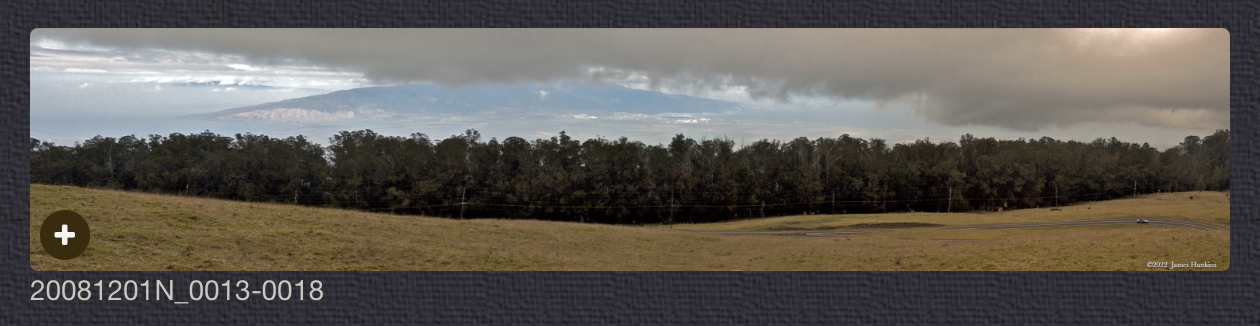
Clicking anywhere on a panorama thumbnail will cause the image to expand to fill the browser width. Clicking again anywhere in the browser window or scrolling the browser window will cause the expanded image to shrink back to its smaller thumbnail size.
The Image ID and description is found just below the thumbnail image on the left side.
Individual Photographs
If you click on any photo thumbnail, it will open a larger viewer which can be used to walk through all of the standard photos on the page. Once open, to go forward click on the > on the right side of the enlarged image. To scan backwards, click on the < on the left side. To close the larger images either click on the X in the upper right hand corner of the browser window or anywhere outside of the enlarged image.
The Image ID label can be found by hovering a cursor over the thumbnail image (may not be available on some tablets/phones) or, once enlarged, from the lower left hand side just under the image.
Additionally, in the same area as the Image ID (or the upper left corner for newer/updated sites) a count showing the current image number versus the total number of images available for viewing.

For newer or updated sites (look for the orange checkbox in the header of a sites main page), additional buttons have been added when viewing a full size image. From left to right, the buttons are:
- Email: will open an email with information and a link to the current image
- WhatsApp: if WhatsApp is on your system, will open a browser window to open WhatsApp and create a message with information and a link to the current image
- FaceBook: Will open a browser window to open Facebook and create a message with information and a link to the current image
- full screen: will take over the entire display versus just the browser in most systems; ESC returns to the brower only mode
- magnify: enlarges the image within the browser or full screen; if the image is larger than can be displayed it can be scrolled
- exit: will close the large image viewer returning to the thumbnails